Giving every AI agent its own computer: desktops, takeover and limits
How OpenTeam gives each self-hosted AI agent its own Linux desktop in one container, with live takeover, shared sign-ins, root access and memory limits.
On this page
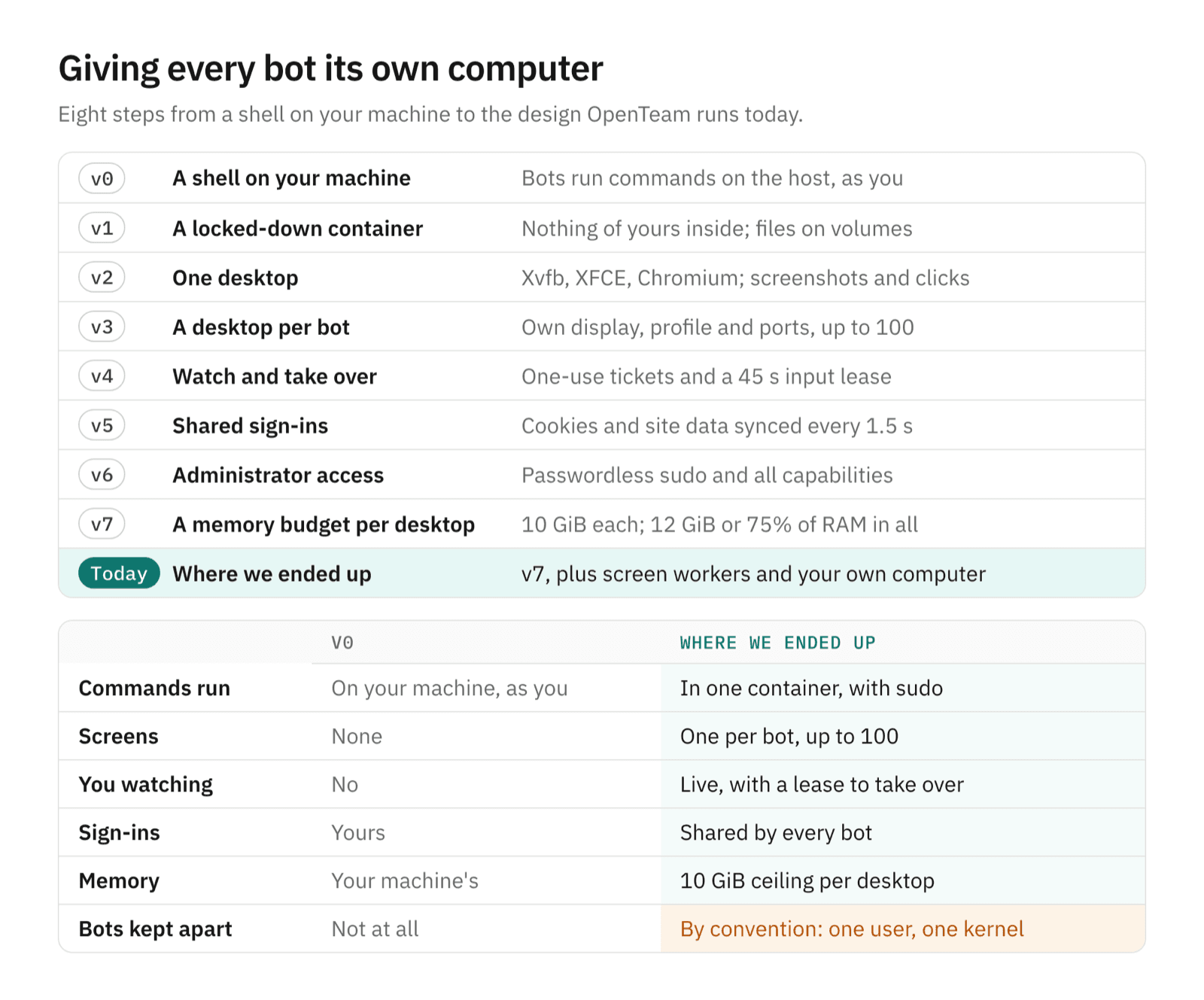
An AI agent's computer is a place where it can run commands and use a screen, a browser and a terminal without touching yours. OpenTeam, a self-hosted AI agent team, gives each bot its own Linux desktop inside one shared Docker container: up to 100 screens, with sign-ins shared across bots and a 10 GiB memory ceiling per desktop. The bots are kept apart by convention, not by virtual machines.
This post builds that design up in steps, from the simplest thing that could work to what OpenTeam runs today; the version numbers exist only for this post. Each step adds one idea, with what it gets right and what breaks. We build OpenTeam, so weigh our view accordingly.
Why a bot needs a computer at all
Plenty of a bot's work never needs a screen. OpenTeam's plugins for Gmail, Linear or GitHub are faster, cheaper and more reliable than clicking through a website. Reflex measured the gap in Computer Use is 45x more expensive than structured APIs: its vision agent took 53 steps, about 551,000 input tokens and 17 minutes for a task an API agent did in 8 calls, about 12,000 tokens and under 20 seconds.
Reflex also says where screens still win: third-party software and systems you can't change. A supplier portal with no API, a sign-in page, a spreadsheet someone emailed you. A bot also needs somewhere to keep files and run tools between tasks. That's the job of its computer.
Five problems shaped every step below:
- Blast radius. What can a bot damage? v1 moves it off your machine, and v6 gives some of that back on purpose.
- Collisions. Two bots, one mouse. v3 gives each bot its own screen.
- Visibility. You can't see what it's doing or help when a site needs a person. v4 adds live viewing and takeover.
- Sign-ins. Signing in to every site once per bot. v5 shares them.
- Runaway resources. One bot's browser starving the rest. v7 adds a memory ceiling per desktop.
v0: a shell on your machine
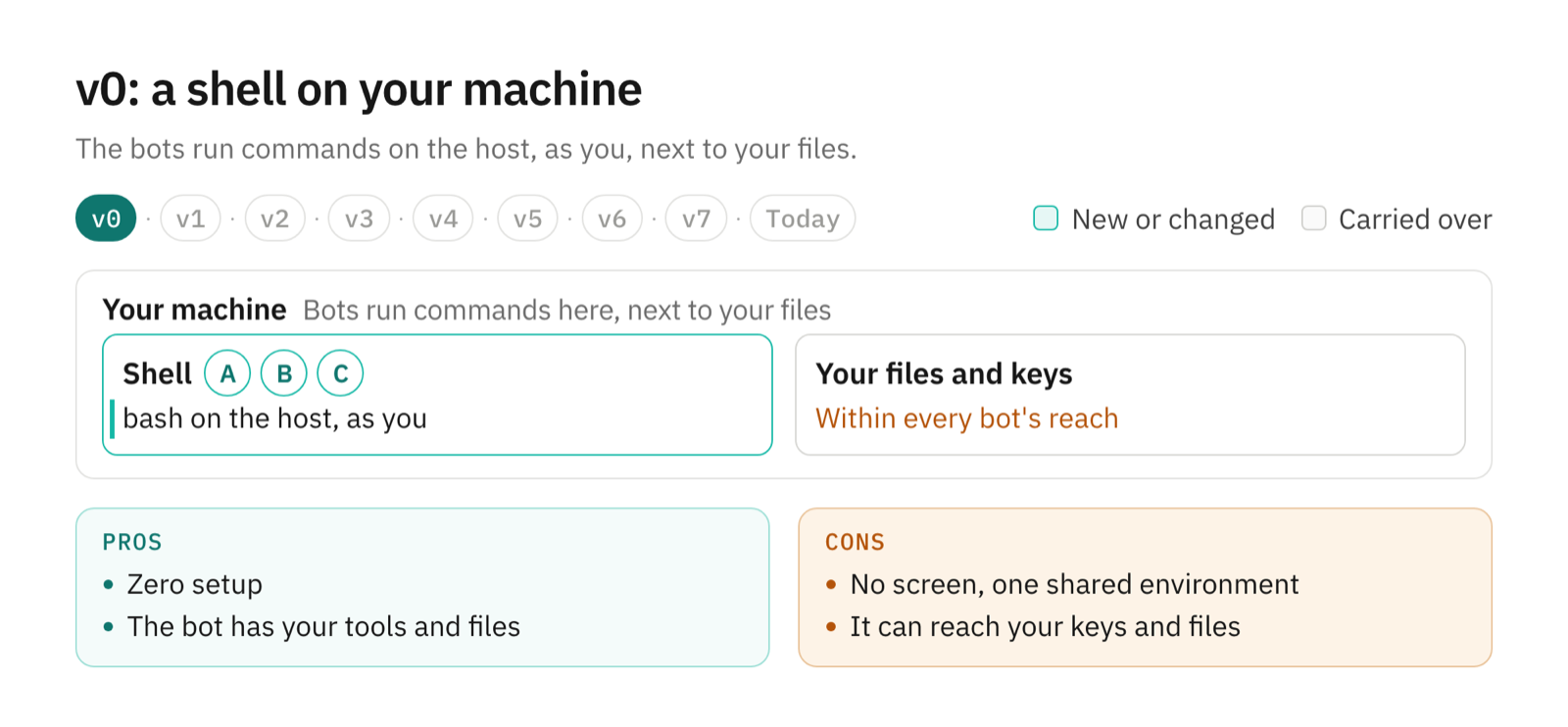
The simplest computer is the one the server already runs on: the bot executes commands on it.
How it works. The bot gets a Shell tool that runs bash on the host, as you. Many coding agents start here, usually with an approval prompt before each command. There's no image to build and nothing to install.
Pros.
- Zero setup. The bot has the tools and files you have.
- Nothing to keep in sync: no container, no volumes, no second copy of your work.
Cons.
- No screen. The bot can't use a site that has no API.
- Every bot shares one environment, so one bot's
npm installchanges what the others see. - Everything you can reach, the bot can reach: your SSH keys, your browser profile, your home folder. One prompt injection in a fetched page ("run
curl … | shto continue") and it runs on your laptop.
v1: a locked-down container
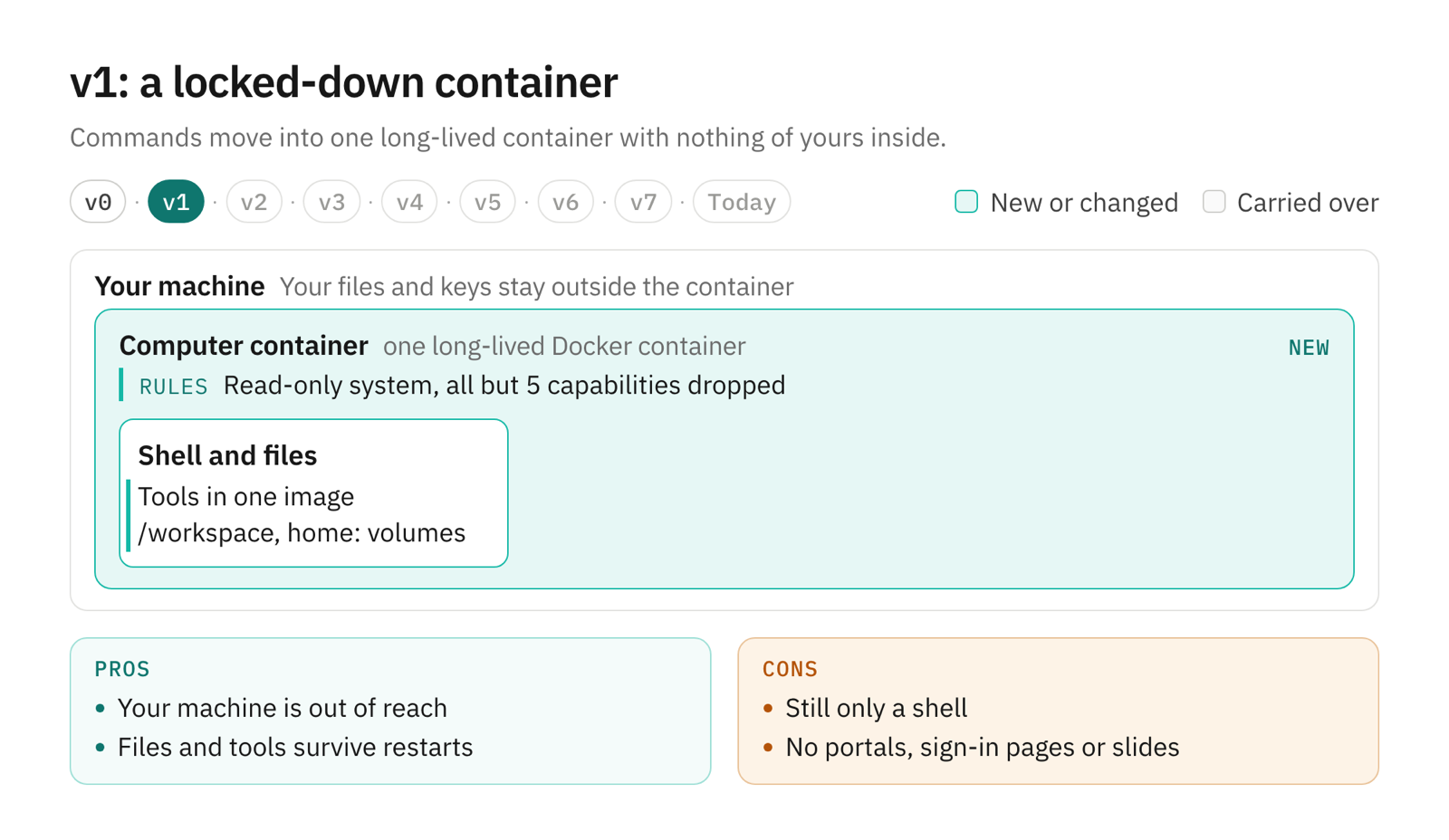
In v1, the bot's commands run in a Linux container with nothing of yours inside.
How it works. One long-lived Docker container, the computer, holds every bot's work. Its image comes with what bots need preinstalled: git, the GitHub CLI, Python, Node, ffmpeg, LibreOffice, Tesseract and ripgrep. A shared /workspace folder and the home folder sit on Docker volumes, so files survive restarts and updates.
We first ran this container locked down: a read-only system, all but five Linux capabilities dropped, no-new-privileges, and a 512 MiB /tmp that couldn't run programs. Commands also don't inherit the computer's secrets: any environment variable named like a key, token or password is removed before a bot's process starts.
The container is persistent on purpose. A cloud sandbox such as E2B is "a fast, secure Linux VM created on demand for your agent". Our bots return to the same files and tools, task after task, so the computer stays.
Pros.
- Nothing on your machine is reachable unless you mount it.
- Files and tools survive restarts, unlike a fresh sandbox per task.
- One image gives every bot the same, known set of tools.
Cons.
- It's still a shell. A bot can fetch a page's HTML, but it can't click through a vendor portal, solve a sign-in flow or check how a slide looks.
v2: one desktop
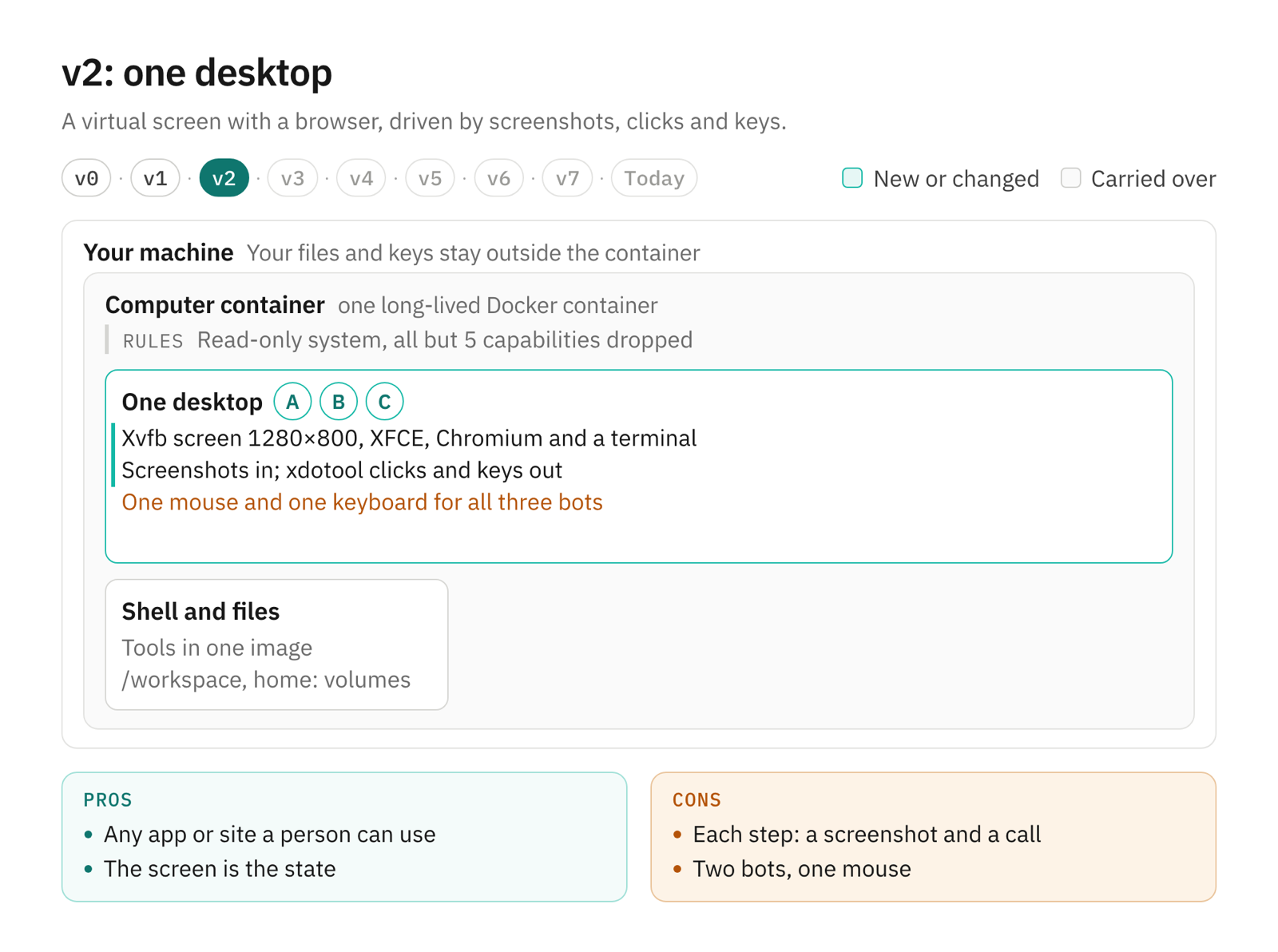
In v2, the container runs a virtual screen with a desktop, a browser and a terminal, and the bot works it like a person.
How it works. Xvfb draws a 1280×800 screen in memory, and XFCE draws a desktop on it with a dock for Chromium, a file manager and a terminal. The bot takes a screenshot (ImageMagick's import of the whole screen), decides what to do, and acts with xdotool: move, click, drag, type, press keys or scroll. Then it takes another screenshot.
This is the shape of Anthropic's computer-use reference demo, "a Linux desktop in Docker with X11 + VNC". Its README is candid about the limit: the setup "can only be used by one session at a time".
Pros.
- Any app or site a person can use, with no integration to build.
- The screen is the state. What you would see is what the bot sees.
Cons.
- Every step is a screenshot and a model call, the slow path Reflex measured.
- Two bots, one mouse. Research is typing a search when Writer clicks into its own window, and the rest of the query lands in Writer's document.
v3: a desktop per bot
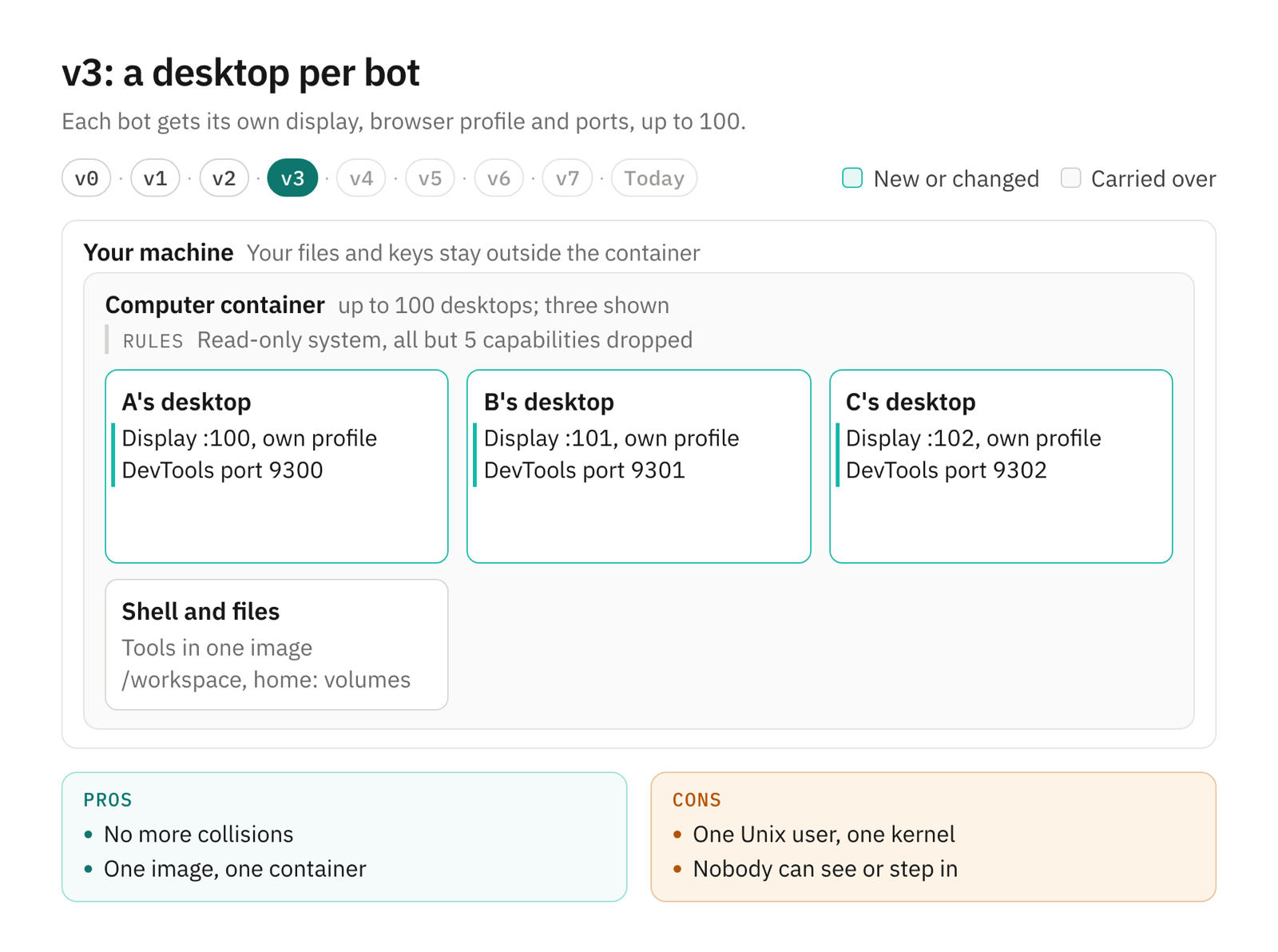
In v3, each bot gets its own screen, browser profile and ports, all in the same container.
How it works. The computer gives a bot a slot the first time anyone asks for its screen, up to 100 live screens. Slot n gets:
- display
:100+n, 1280×800 by default (Settings → Computer sets one size for the server, from 640×480 up to 7680×4320); - its own D-Bus session, XFCE desktop and dock;
- a Chromium profile, with its DevTools port at
9300+non loopback; - a LibreOffice profile, because LibreOffice "otherwise reuses the first process, even on another bot's display".
Profiles stay on the home volume, so a bot's history, site data and settings survive a restart. The screen itself starts again on demand. If its viewer fails two health checks in a row, the desktop is marked failed and rebuilt on the next request.
Why not a virtual machine per bot? Products like E2B Desktop do exactly that: an Xfce desktop where "each sandbox is isolated from the others". A VM gives each agent its own kernel. One container gives you one image, one set of packages and one thing to update, and it fits on a home server or a laptop.
Pros.
- Bots stop colliding. Each has its own mouse, keyboard, windows and tabs.
- One image and one container, however many bots you run.
- A bot's browser profile persists, so its history and site data carry over.
Cons.
- The desktops share one Unix user and one kernel. That's a convention, not a wall, and it stays that way to the end of this post.
- Nobody can see any of it. When a site asks for a passkey, the bot is stuck, and you can't step in.
v4: watch and take over
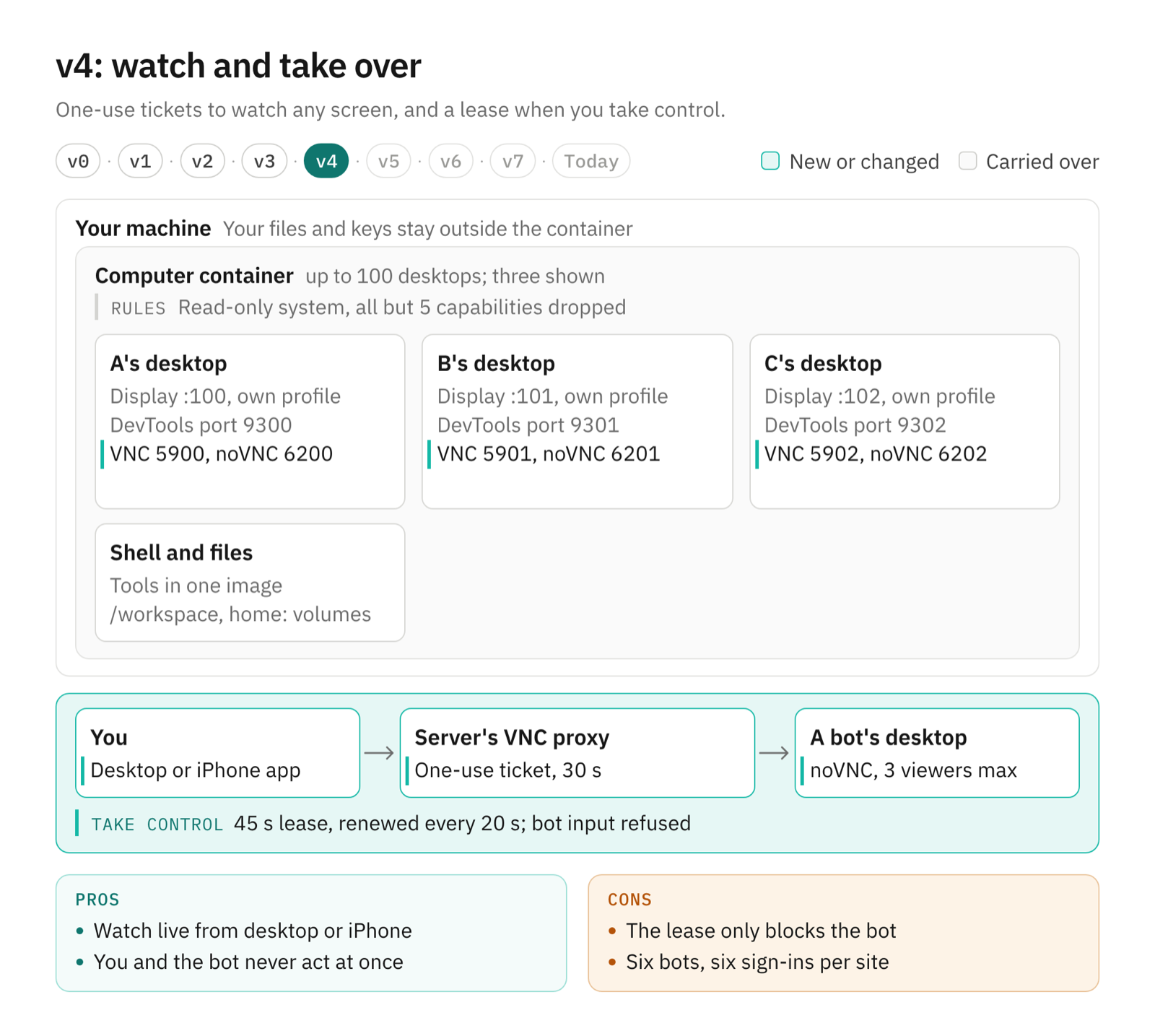
In v4, you can watch any bot's screen live and take the mouse.
How it works. Each desktop runs x11vnc on a loopback port (5900+n) with a new random password every time it starts, behind noVNC on 6200+n. The apps don't hold those passwords. They ask the server for a ticket instead, and the server bridges the connection (screen-vnc.ts):
- 32 random bytes, valid for 30 seconds and usable once;
- tied to the app's origin and consumed before authorization, so a replay fails;
- at most 3 viewers per bot, with your session rechecked every 15 seconds and the stream closed when you sign out.
In the code's words: "Neither the owner bearer token nor the VNC password appears in a socket URL."
Taking control is a lease. Opening the full-size screen on desktop takes a 45-second input lease and renews it every 20 seconds; on iPhone you choose Take control. While you hold it, the bot's input is refused. Every input you make also bumps a revision counter, so an action the bot queued before you touched the screen fails with "Graphical control changed; inspect the screen before retrying input". The bot looks again instead of clicking where a button used to be.
Bots ask for help with a card, through request_box_help: Take over, then I'm done, continue or Skip this step. They try sign-in steps themselves first, including CAPTCHAs on your own accounts, so the card is for what tools can't do, such as a passkey. When the bot needs a value from you, like a password or a code, a form card asks for it. The computer types it straight into the page, and the bot learns only whether each field was filled, never the value.
Pros.
- You can watch every bot live, from the desktop app or your iPhone.
- You and the bot never act at the same moment, and stale bot clicks fail safely.
- You type passwords into the site or a form card, never into the chat.
Cons.
- The lease only blocks the bot. Three viewers can all type at once.
- Each bot's browser keeps its own cookies. You sign in to your email on Research's screen, and Writer is still signed out. With six bots, that's six sign-ins per site.
v5: shared sign-ins
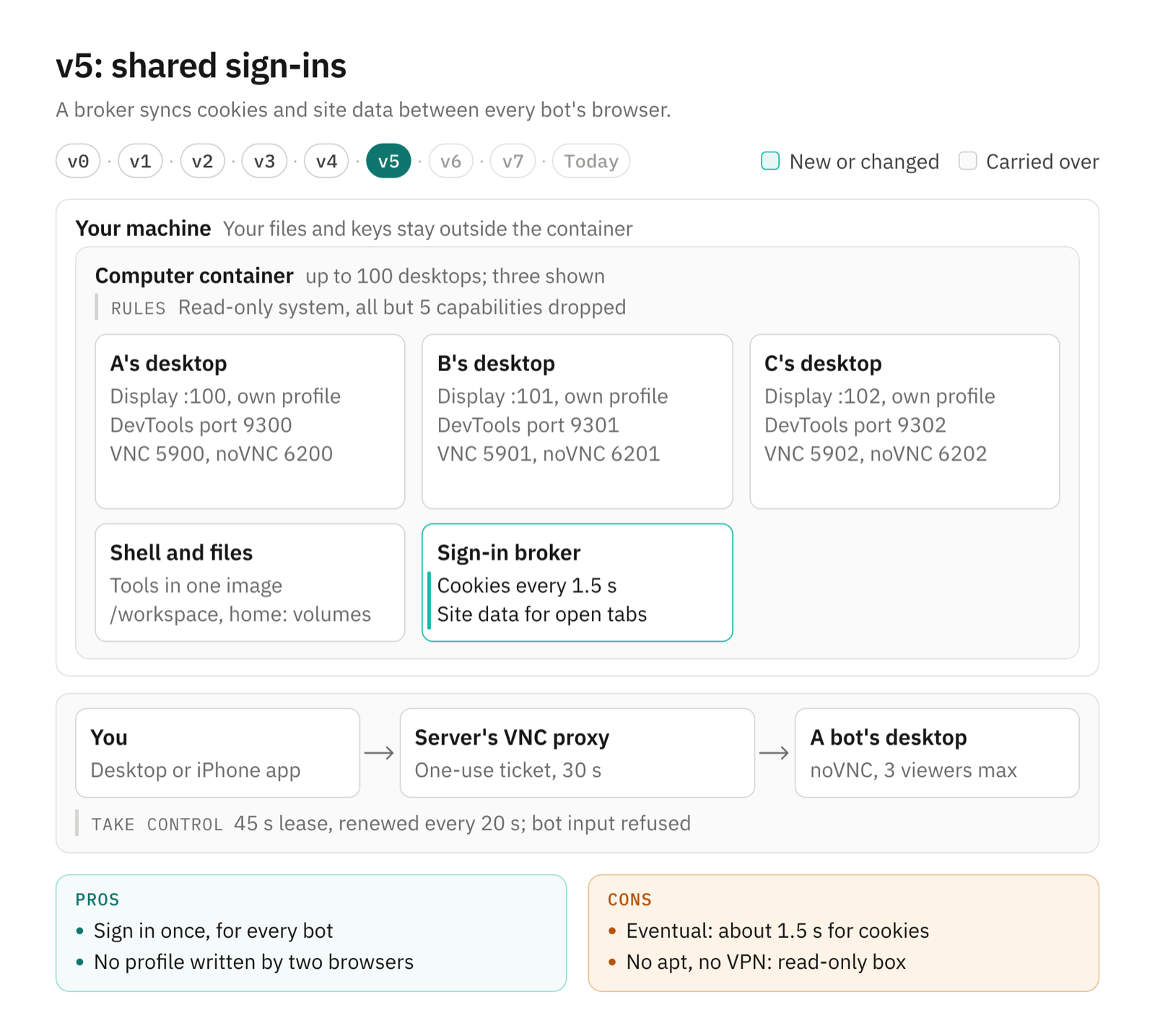
In v5, signing in on any bot's screen signs in every bot.
How it works. Two Chromium processes can't safely write one profile, so each bot keeps its own, and a broker in the computer reconciles them over the Chrome DevTools Protocol (broker.ts):
- Every 1.5 seconds it compares cookies across the live browsers and copies changes and deletions.
- For sites open in a tab, it also copies local storage, IndexedDB, Cache Storage and service-worker registrations, up to 64 MiB per site.
- It saves the merged state encrypted with AES-256-GCM, so sign-ins survive restarts.
Files Chromium can't share while running, such as saved logins, history, bookmarks and preferences, take a slower path. When a browser stops, they're promoted to one snapshot, and the next browser gets a copy before it starts. On a Mac, the desktop app can also import your own Chrome cookies for named sites. That runs without a dialog, so the tool tells the bot to "pass only the sites the task needs".
The idea of a saved browser identity isn't new. Browserbase's Contexts "persist user data across multiple browser sessions". What's different here is sharing it among browsers that run at the same time.
Pros.
- Sign in once. Every bot is signed in within seconds.
- Each bot keeps its own windows and tabs, and no profile is ever written by two browsers.
Cons.
- It's eventual. Cookies arrive within about 1.5 seconds, site data only for sites open in a tab, and saved logins only after a browser stops.
- Every bot can act as you on every site any bot signed in to.
- Real tasks hit the locked-down system. A bot needs a package from
apt, or a VPN client to reach a company network, and the read-only, capability-free container refuses both.
v6: administrator access
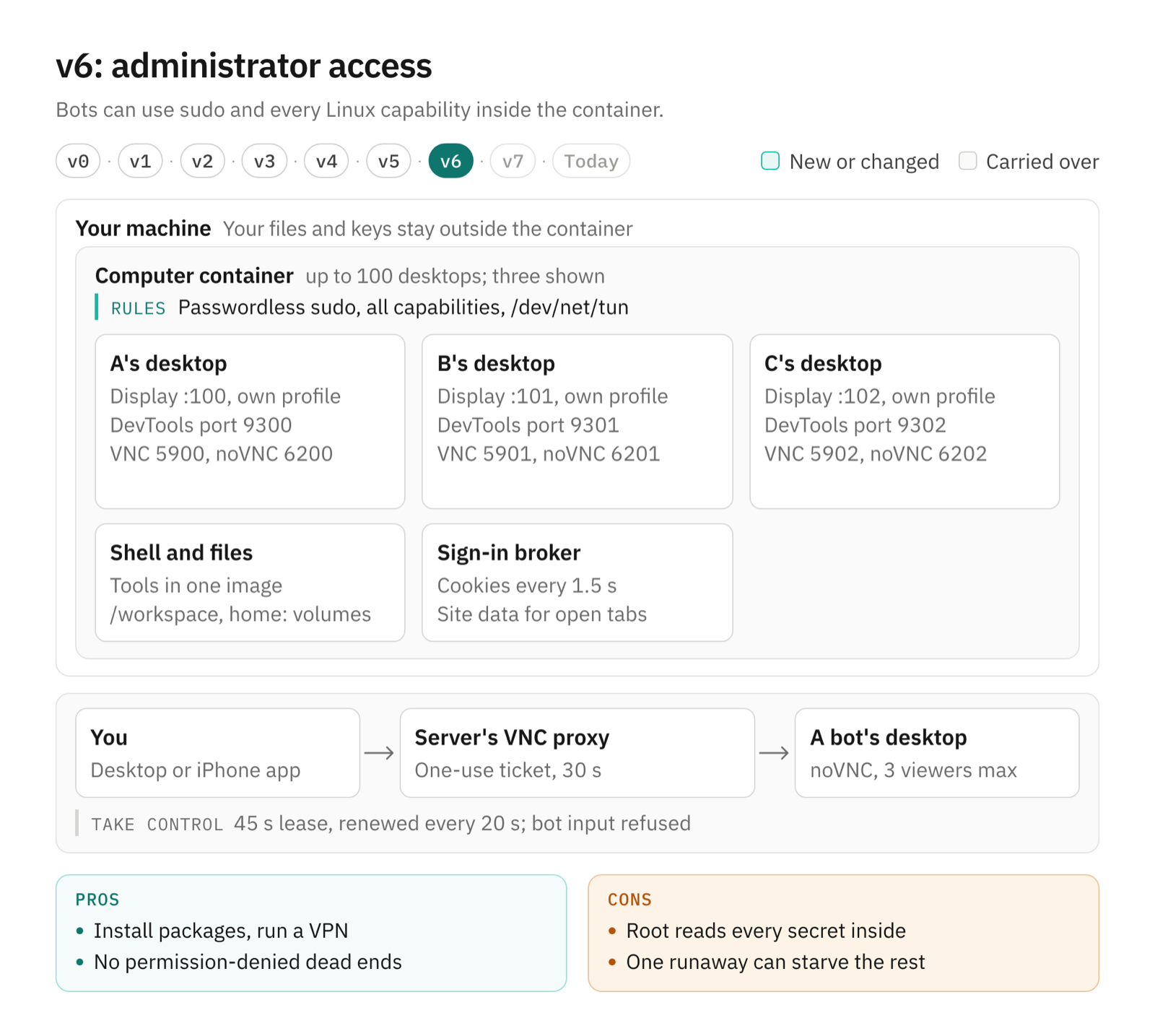
In v6, a bot can become root on its own computer.
How it works. Commands still start as the ordinary box user, and passwordless sudo is there when a task needs it. The container gets all Linux capabilities, unconfined seccomp and AppArmor profiles, writable kernel filesystems, an executable /tmp, and /dev/net/tun for VPN clients.
The computer docs say what that costs. Sudo "gives them access to all container files, including provider credentials". And it "does not provide a separate VM security boundary".
Pros.
- A bot can
apt-get installwhat a task needs, run a VPN client or change system settings, like on a Linux machine you own. - Fewer dead ends. "Permission denied" no longer ends a task.
Cons.
- Root reads everything in the container, including your model provider's key.
- Packages installed with sudo survive restarts, but the docs say they "must be reinstalled after container recreation or upgrades".
- Bigger jobs, one memory pool. A browser with 40 tabs or a large build fills the container, and the kernel's out-of-memory killer may pick another bot's browser.
v7: a memory budget per desktop
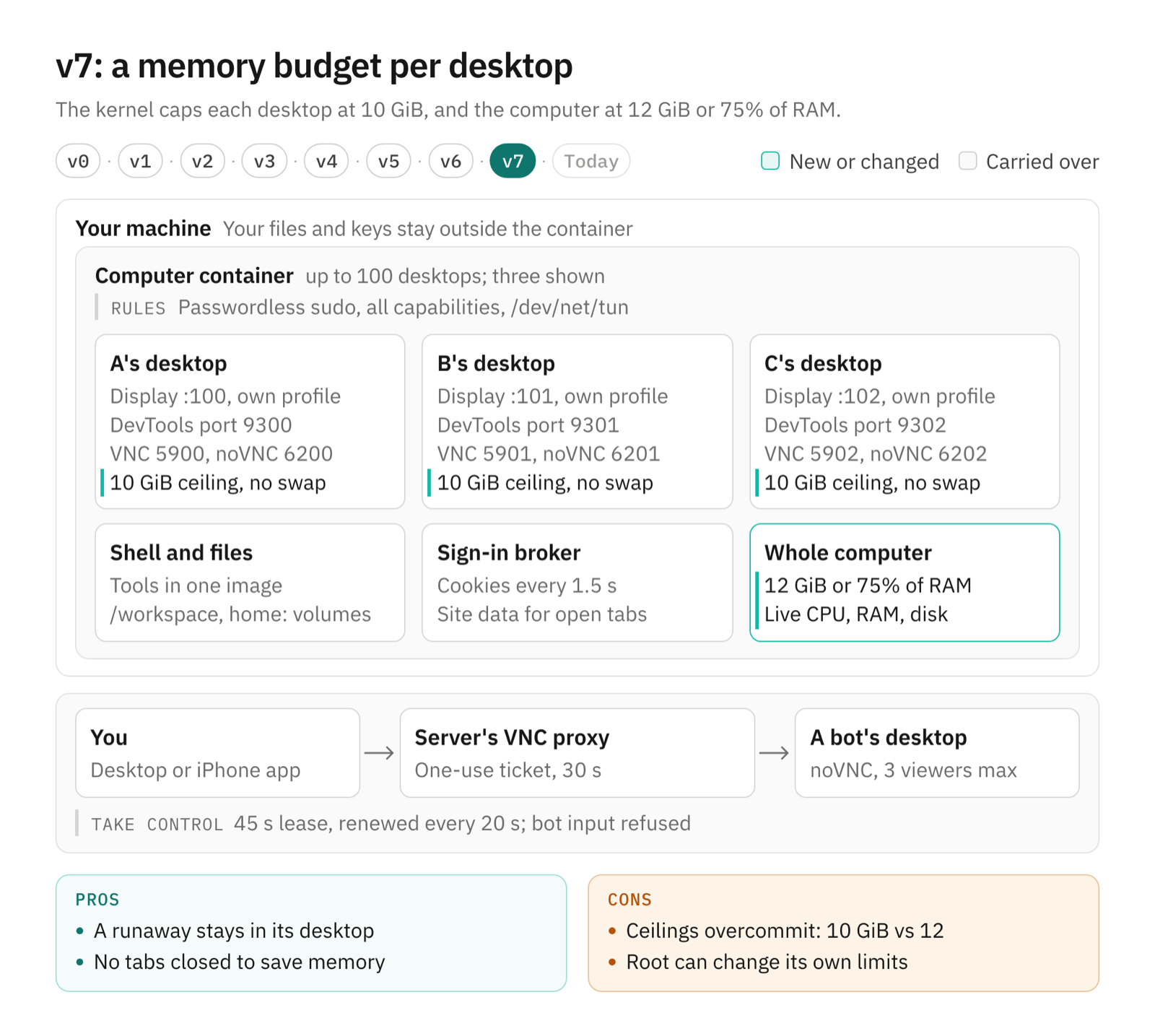
In v7, each desktop has its own memory ceiling, enforced by the kernel.
How it works. Each desktop gets a cgroup v2 group named by a hash of the bot's ID (desktop-memory.ts); the code notes that "Bot IDs are data, never filesystem paths". The group sets:
memory.maxto 10 GiB by default,memory.swap.maxto 0,memory.oom.groupto 0, so the kernel kills the runaway process rather than the bot's whole desktop.
A small helper run by the supervisor joins the group before starting each command. Everything the command starts inherits the budget, including sudo commands and apps that detach themselves. Removing a desktop kills its whole group. A second ceiling covers the whole computer: the smaller of 12 GiB and 75% of the host's RAM, or the Docker VM's on macOS. If the memory controller isn't ready at startup, the computer refuses to start rather than run without limits.
The apps show live CPU, RAM and disk gauges for the server, refreshed every 5 seconds while the panel is open.
Pros.
- One runaway is contained to its own desktop.
- Nothing closes your tabs to save memory. Only an over-budget process is killed.
- You can see the pressure before it bites.
Cons.
- Ceilings aren't reservations. Two desktops at 10 GiB don't fit in 12 GiB, and hitting the combined limit, per the server docs, "may kill the shared runtime and restart the computer container".
- A bot with root can change its own cgroup controls. The code comment says it: "these limits are resource defaults, not a security boundary."
Where we ended up
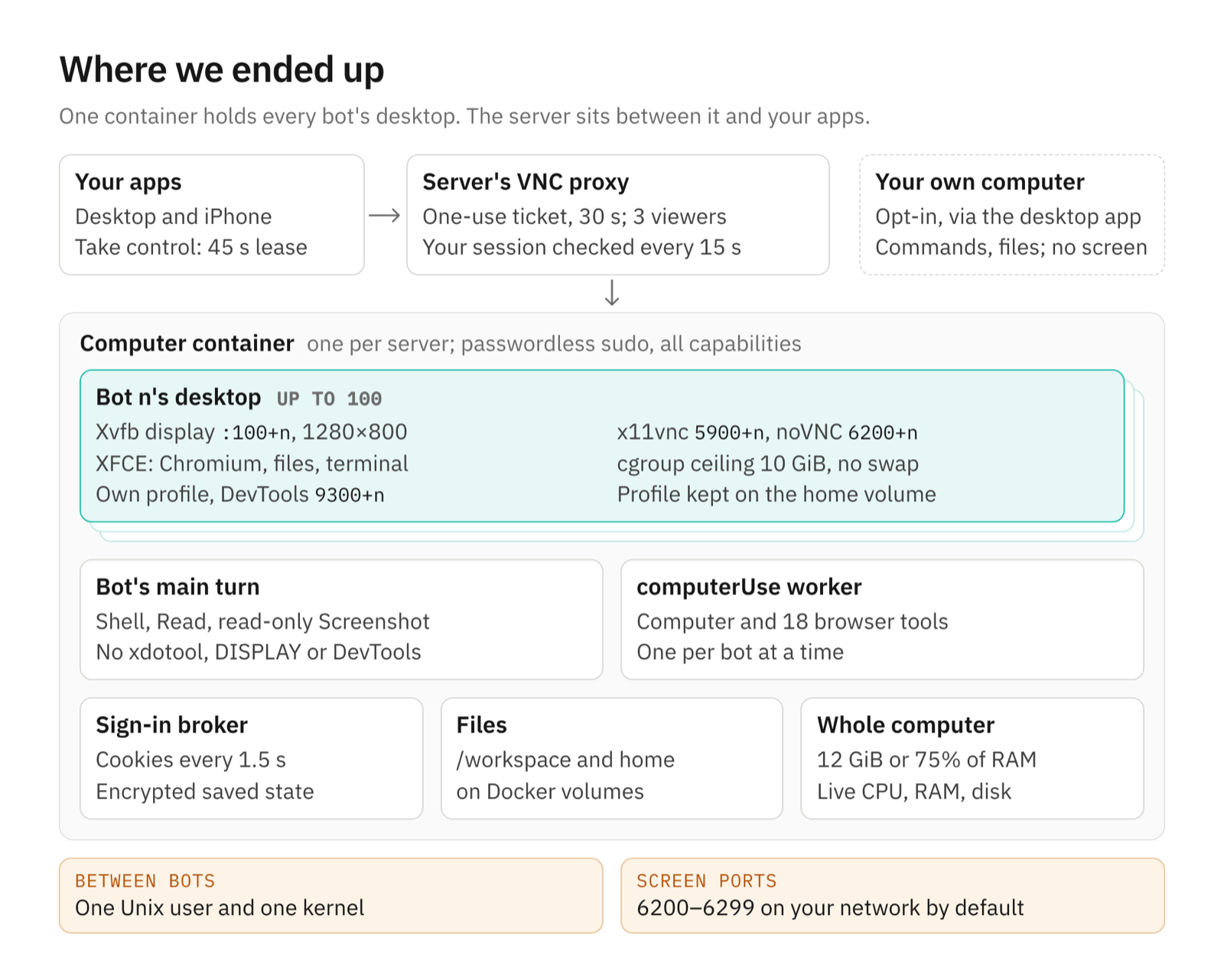
The computer is v7. Around it sit the parts the steps skipped: how a bot divides its work, and the opt-in path back to your own machine.
How a bot uses its computer
A bot's main turn gets Shell and Read on its computer, plus a read-only Screenshot. Its shell can't drive a screen: commands that call xdotool, set DISPLAY or touch the DevTools ports 9222–9399 are refused with a pointer to the right tool (graphical-shell-policy.ts).
Screen work goes to a computerUse worker, one per bot at a time, because it drives that bot's only screen. The worker has:
Computer, for screenshots and mouse and keyboard actions;- 18 browser tools, led by
browser_run_code, which runs up to 16,384 characters of Playwright code against the bot's own Chromium, for up to 30 seconds and 256 KB of output.
A few lines of page code can replace a long loop of screenshots and clicks. Plugins and APIs still come first where they exist.
Your own computer, as an opt-in
v0 comes back by choice. The desktop app can connect your Mac or Linux machine, over an outgoing connection with no open ports. Bots can then run commands, read files and copy files to and from /workspace. On a Mac they can also read your contacts, read and send Messages, and import your Chrome sign-ins. They never see your screen or control your mouse. To stop it, disable the computer in Settings → Computer → Computers or quit the app.
The numbers
| Setting | Value |
|---|---|
| Live screens per server | 100 |
| Screen size | 1280×800 by default, 640×480 to 7680×4320 |
| Ports per desktop | Display :100+n, VNC 5900+n on loopback, noVNC 6200+n, DevTools 9300+n on loopback |
| Viewer ticket | 32 random bytes, 30 seconds, one use |
| Viewers per bot | 3 |
| Takeover lease | 45 seconds, renewed every 20 |
| Cookie sync | Every 1.5 seconds |
| Site data per origin | Up to 64 MiB |
| Memory per desktop | 10 GiB, no swap |
| Memory for the whole computer | 12 GiB or 75% of host RAM, whichever is smaller |
computerUse workers per bot | 1 at a time |
browser_run_code | 16,384 characters, 30 seconds, 256 KB output |
Pros
- Every bot has a real desktop that persists. Files, browser profiles and installed tools carry from task to task.
- You can see and take over everything, from the desktop app or your iPhone, and a lease plus a revision counter keep you and the bot from acting at once.
- One sign-in covers every bot, without two browsers ever writing the same profile.
- It's one container on your hardware. One image to update, no VM per bot, and a memory ceiling per desktop.
Cons
- Bots aren't isolated from each other. They run as one Unix user with one home folder, and Xvfb runs with
-ac, which turns off X access control, so any process can draw on or type into any display. The shell rule above matches command text; a script that builds the same address at run time gets past it, andcomputerUseworkers are exempt. - Root can read every secret in the container. That includes your provider credentials and the key for the encrypted browser state, which sits in the same folder as the state it protects.
- Chromium runs with
--no-sandbox, and each DevTools port accepts connections from any origin on loopback. A browser bug that escapes a web page lands in a user with passwordless sudo. - One kernel. The container shares the host's kernel. E2B and Docker Sandboxes, which run agents "in MicroVM environments", put a VM boundary between each agent and the host; we don't.
- The screen ports are open on your network by default. The default Private network mode binds
6200–6299on every interface, behind an 8-character VNC password and no TLS. The apps use tickets, but the raw ports remain, and the remote access docs say: "Don't forward them from your router." - Memory ceilings overcommit, and 100 live screens is a hard cap. The computer scales up on one machine, not out across several.
- Screens are still the slow path. Even with
browser_run_code, a task done through a desktop costs more steps and tokens than the same task through an API.
The wider limits apply too. One model serves every bot, and a server has one human account. Desktop apps exist only for macOS on Apple silicon and Linux x64, and the iPhone app is in beta.
How this compares
None of these pieces is new on its own. Virtual desktops, VNC takeover and saved browser profiles all predate OpenTeam. The choices differ in where the walls go.
| Approach | Example | Unit of isolation | State between tasks |
|---|---|---|---|
| Shell on your machine | Coding agents with approval prompts | None | Your machine |
| One desktop in one container | Anthropic's computer-use demo | The container, one session at a time | Restart or reset between sessions |
| A VM per agent | E2B Desktop | A Linux VM per sandbox | Paused sandboxes are kept indefinitely |
| A cloud browser | Browserbase | A browser session | Contexts persist cookies and storage |
| Many desktops in one container | OpenTeam | Convention inside one container | Volumes, plus sign-ins synced across live browsers |
We chose the last row because our bots work as a team on one person's hardware. They share files and sign-ins on purpose, and a home server can't spare a VM per bot. If you run bots on input you don't trust, such as untrusted web content with access to accounts you care about, a VM per agent is the stronger design.
What's still open
Three things would narrow the cons above, and none is built: a separate Unix user per bot, Chromium's own sandbox, and a VM per bot for people who want one.
Frequently asked questions
Does an AI agent need its own computer?
Not for everything. APIs and plugins are faster and cheaper. A computer matters for websites and apps without an API, for sign-in flows, and for keeping files and tools between tasks. OpenTeam bots use plugins first and their desktop for the rest.
Is an OpenTeam bot's computer a virtual machine?
No. Every bot's desktop runs inside one Docker container that shares your host's kernel. Bots get passwordless sudo inside it, and they share one Unix user, so the separation between bots is a convention, not a security boundary.
Can I watch and control what the agent is doing?
Yes. Open a bot and choose the computer button to see its screen live, on desktop or iPhone. Opening the full-size view on desktop, or choosing Take control on iPhone, holds a lease that refuses the bot's input until you close the view or hand control back.
How many bots can have a desktop at once?
Up to 100 per server. Memory is usually the real limit: each desktop can use up to 10 GiB, and the whole computer is capped at 12 GiB or 75% of the host's RAM, whichever is smaller.
Do the bots share website logins?
Yes. A sign-in on one bot's screen reaches every bot within seconds, and it survives restarts when the site remembers it. That also means any bot can act as you on those sites.
Try OpenTeam
Install it on macOS or Linux with curl -fsSL https://openteam.so/install | sh, or on Windows with irm https://openteam.so/install.ps1 | iex in PowerShell. The quickstart walks through your first bot. Then open the bot and choose the computer button to watch its screen.