AI agents that edit Google Docs, Sheets and Slides
OpenTeam's self-hosted AI agents edit Google Docs, keep Sheets updated on a schedule and build Slides decks. Setup, example prompts, limits and fixes.
On this page
Yes, AI agents can now edit Google Docs, Sheets and Slides in place. OpenTeam is a self-hosted AI agent team, and v0.0.3 added Docs, Sheets and Slides plugins plus an office worker for decks. Bots can edit any doc, sheet or deck your Google account can edit, without asking first. Only email goes through a draft card.
We build OpenTeam (GPL-3.0), so weigh our view accordingly. This guide follows the v0.0.3 release notes, the plugin source and our Google setup docs; v0.0.4 didn't change the Google plugins. Screenshots are staged with sample data.
What OpenTeam bots can do in Docs, Sheets, Slides and Drive
Each Google service is a separate plugin with its own sign-in. Docs, Sheets and Slides edit existing files, not only new ones, but their tools take a file ID.
Capabilities as of v0.0.4, from each plugin's tool list.
| Plugin | What bots can do | Files they can change |
|---|---|---|
| Google Docs | Insert, replace, delete and style text; lists, tables, images, page breaks, headers and footers | Any doc your account can edit |
| Google Sheets | Write, append and clear values; format cells; charts, filters, validation, conditional formatting, sorting | Any sheet your account can edit |
| Google Slides | Add, arrange and fill slides; text, shapes, images, tables; render a slide as an image | Any deck your account can edit |
| Google Drive | Search, read and export files; move, rename, share and trash; read, add and reply to comments | Only files bots created through Drive |
Drive writes use Google's drive.file scope, which covers files an app created or opened (Drive API scopes). Its drive.readonly scope lets bots read every file your account can see.
What you need
- An OpenTeam server on 0.0.3 or later, and the desktop app for macOS (Apple silicon) or Linux (x64), or the iPhone beta on TestFlight.
- A model that handles tool calls well. One model serves every bot, set in Settings → Server → Model and reasoning.
- A Google account that can create a Google Cloud project. On Workspace, an administrator may need to allow your app (Control which apps access Google Workspace data).
- Your server address:
https://needs a Web application OAuth client,http://a Desktop app client. See our Tailscale HTTPS guide for a private HTTPS address.
Set up the Google Docs, Sheets and Slides plugins
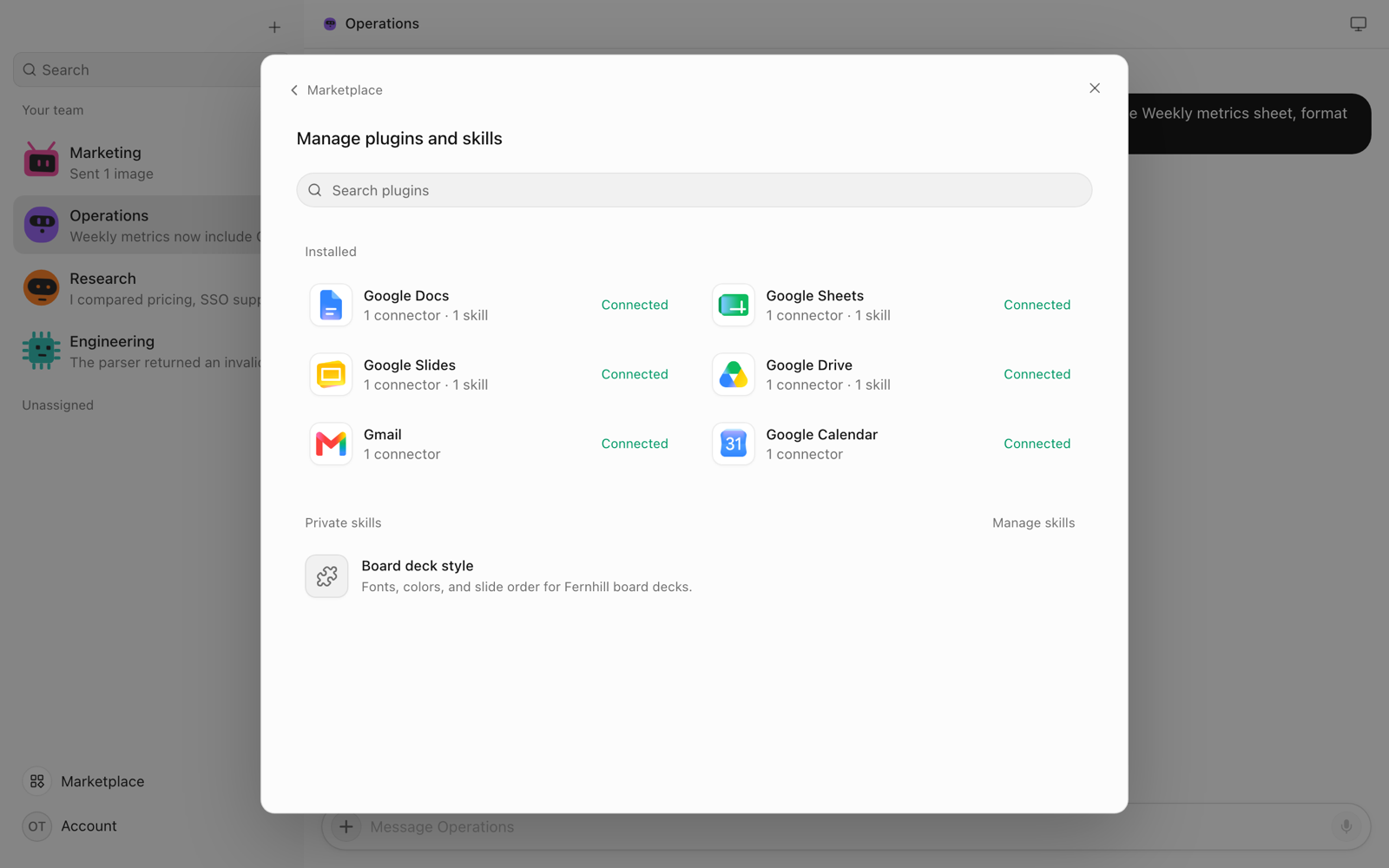
If Gmail, Calendar or Drive is already connected, reuse that Google Cloud project and OAuth client; each new plugin needs one API and one scope. Connect Drive too: bots use it to find files by name, read exports and upload finished decks.
Step 1: Add the plugin in Marketplace
Open Marketplace and choose Add on Google Docs, Google Sheets or Google Slides. Keep the plugin's page open: it lists the Required provider scopes and, on an HTTPS server, the Authorized redirect URI.
Step 2: Enable the API and add the scope
- In the Google Cloud Console, open the project you use for the other Google plugins.
- Under APIs & Services → Library, enable the Google Docs API, Google Sheets API or Google Slides API (Enable Google Workspace APIs).
- On the OAuth consent screen, add the plugin's scope:
documents,spreadsheetsorpresentations. For a personal Gmail account, choose the External audience and add yourself as a test user; on Workspace, you can choose Internal (Configure the OAuth consent screen). - Starting fresh? Create an OAuth client: Web application with the plugin's redirect URI, or Desktop app for an HTTP server (Create access credentials).
Step 3: Connect the account and test a tool
- On the plugin's page, paste the client ID and secret, then choose Save credentials and continue.
- Sign in with Google. On an HTTP server, the browser ends on a page that doesn't load. Copy its address into Paste the browser address here and choose Complete sign-in.
- If Google warns that it hasn't verified the app, continue: it's the app you created.
- To check it, open your installed plugins in Marketplace, choose the plugin, open the account's settings, and run a tool such as
read_documentunder Test a tool.
Repeat for each plugin. Connected accounts are available to every bot.
Example prompts for Docs, Sheets and Slides
Name the file, the tab or section, and what done looks like. Paste a link if you have one; otherwise Drive finds the file by name.
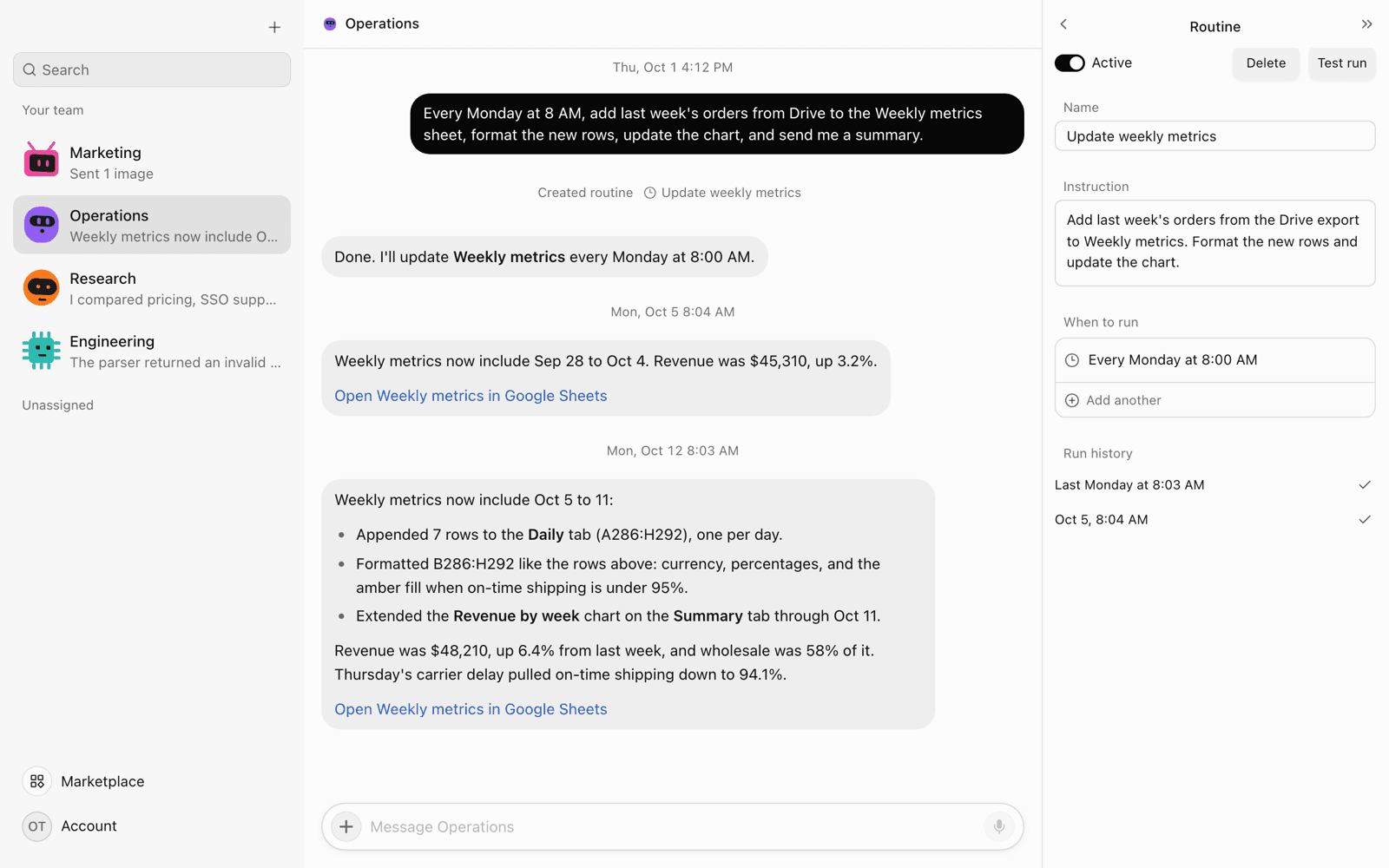
Update a weekly metrics sheet
Read last week's orders export from the Orders folder in Drive. Append one row per day to the Daily tab of Weekly metrics, format the new rows like the rows above, extend the Revenue by week chart on the Summary tab, and send me the highlights with a link.
The bot reads the export through Drive, then appends the rows, formats them to match and updates the chart in place. Appending inserts rows, so nothing below the table is overwritten.
Draft and format a Google Doc from notes
Turn the notes below into a Google Doc called "Supplier call notes": a title, a three-sentence summary, decisions as a numbered list, and action items in a table with Owner and Due columns and a shaded header row. Send me the link.
Drive imports Markdown with headings, lists and tables in one call (Import to Google Docs types). The Docs tools then shade the header row and fix styles.
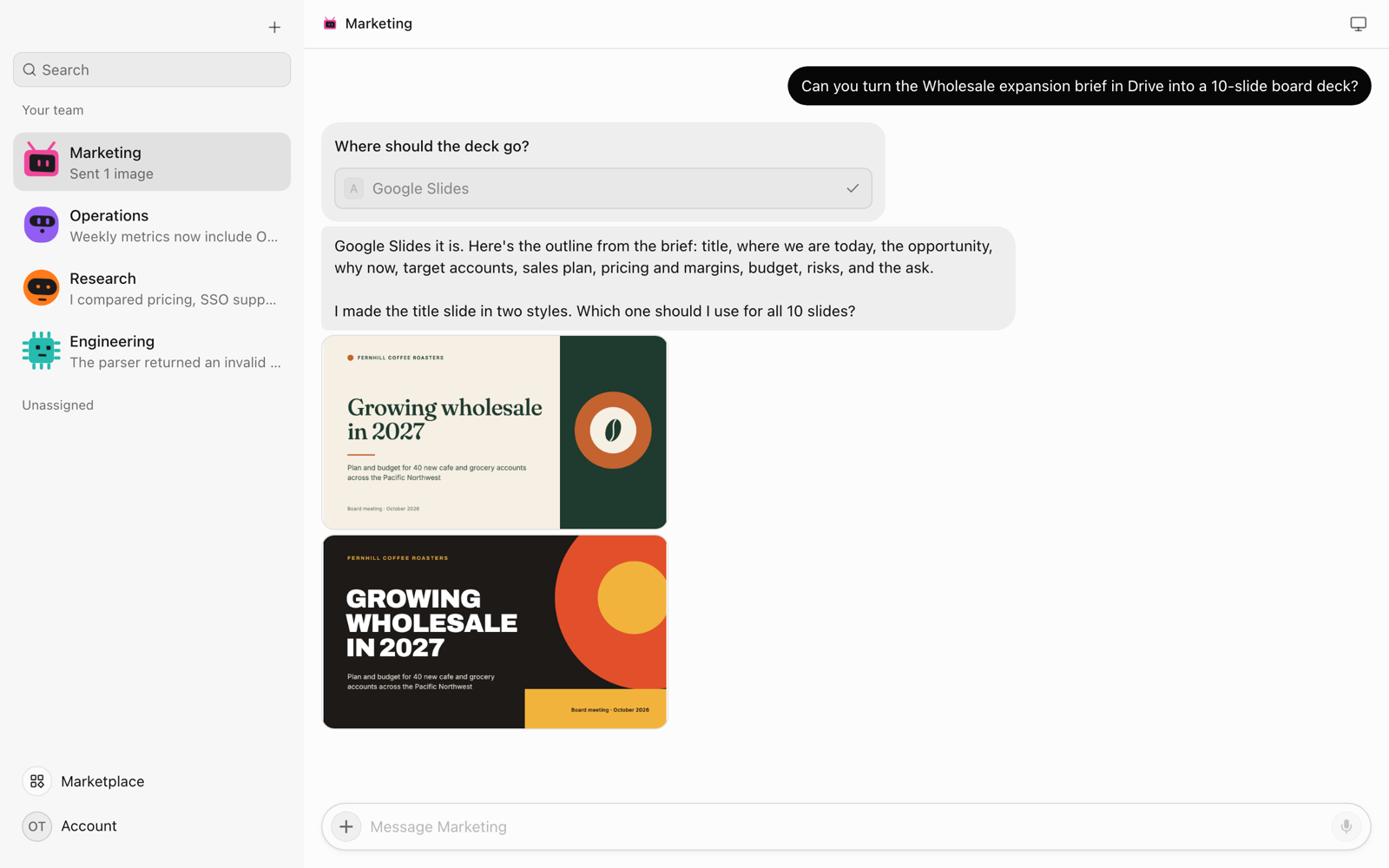
Build a 10-slide deck from a brief
Make a 10-slide Google Slides deck for the next board meeting: a plan and budget for 40 new cafe and grocery wholesale accounts in the Pacific Northwest. Use the numbers in the Wholesale plan 2027 doc. The ask is a $420K budget.
You approve an outline, pick one of two designs, and get a native Google Slides file. The next section covers each step.
Work through review comments on a doc
Read the open comments on the Q4 pricing proposal doc, make the edits the reviewers asked for, and tell me which comments still need me.
Bots can read comments on any file your account can see, and the Docs tools make the edits. They can reply to, resolve or add comments only on files they created through Drive. Google shows API comments as unanchored, attached to the file rather than a passage (Manage comments).
How OpenTeam builds a Google Slides deck
Decks, spreadsheets and documents go to a background office worker on the bot's own Linux computer. It uses the same model and accounts as your bots. For a new deck:
- Destination. If you didn't name Google Slides, PowerPoint or another app, the bot asks. It also asks whether you have a deck or template to start from.
- Outline. The audience, the decision the room should leave with, and one line per slide. The bot waits for your approval.
- Two designs. Without a template, the worker drafts two looks with different palettes and type. You see the title slide and one body slide of each, then pick one or ask for changes.
- Storyboard. A contact sheet of the chosen layouts in order, for your approval.
- Build and check. The worker fills two or three slides at a time, renders them, and checks each image for cut-off text, low contrast, crowding, small type, leftover template text and fallback fonts. Then it makes one fix pass.
- Delivery. After a check of the whole deck, the bot sends the
.pptxand slide images in chat, and uploads the file to Drive as a native Slides deck.
Say "don't ask" to skip the stops. The worker puts source links in the speaker notes and leaves out claims it can't source. For Google Slides, it sticks to fonts Slides has, such as Roboto, Inter and Lora, because Slides swaps other fonts on import.
For a deck already in Google Slides, the Slides plugin can edit slides in place and render each one to check it.
Keep a Google Sheet updated automatically with a routine
A routine is a saved instruction that a bot runs on a schedule, on your server.
- Run it once in chat. Use the weekly metrics prompt above and check the sheet.
- Ask for the schedule in the same chat:
Do this every Monday at 8 AM Pacific. Append; never change earlier rows. If the export is missing, change nothing and tell me.
- Check it. Choose the computer button at the top right of the chat and look under Routines. Test run runs it now, Run history lists past runs, and Active pauses it.
Put the file, tabs and rules in the instruction rather than relying on what the bot remembers; our post on AI agent memory explains what bots keep.
A routine can have up to eight schedules and runs at most every five minutes. The server must be on, but the apps can be closed. Sheets has no edit check, so the last write wins: schedule runs for when nobody is editing. If your Google app is in Testing, a weekly routine fails once the seven-day sign-in expires.
What it can't do yet
- No approval step for files. Bots edit, share and trash files as soon as they decide to. Only email goes through a draft card. A bot's email appears in chat as New email or Reply for you to Send or Discard, unless you've allowed those recipients or turned drafts off for that bot. Google's version history can restore an earlier version.
- Shared accounts. Every bot can use every connected account; there are no per-bot grants. Connect a separate Google account if yours reaches too much.
- Drive only changes files bots created, and can't add files to your folders. Bots can't delete files permanently; trash keeps them for 30 days (Google Drive Help).
- API gaps. Doc headers and footers are static, so no page numbers. Images the Docs and Slides tools insert must come from a public URL, as PNG, JPEG or GIF under 50 MB (Docs API). Charts are bar, column, line, area, scatter or pie; no pivot tables.
- Size caps. Downloads and exports stop at 10 MB, Google's export limit (files.export); other file operations at 64 MB.
- Deck previews can show a substitute font, since the bot's computer has few fonts.
- OpenTeam limits. One model and one human account per server. Desktop apps for macOS (Apple silicon) and Linux (x64) only, the iPhone app is a TestFlight beta, and there's no Android app. Introducing OpenTeam covers the rest.
Troubleshooting
"API has not been used in project … or it is disabled"
The tool call fails with Google API 403 and this message. Sign-in doesn't check which APIs are on, so a connected account can still fail here. Enable the API in your OAuth client's project, wait a few minutes, and retry.
The account shows "Sign-in needed" every week
That's Google's Testing status: "authorizations by a test user will expire seven days from the time of consent," refresh tokens included (Manage app audience, token expiration). Choose Sign in on the account. For a lasting fix, publish the app In production and sign in again; Google may then show an unverified-app warning or ask for verification. Internal Workspace apps aren't affected.
"The caller does not have permission"
The connected account can't edit that file. Share it with the account as an Editor (Share files from Google Drive), or tell the bot which account to use if you connected several. When Drive refuses a move, share, trash or comment, OpenTeam adds that it can only change files it created. Make that change in Drive yourself, or ask for a new file.
Frequently asked questions
Can an AI agent edit an existing Google Doc?
Yes. With the Google Docs plugin, an OpenTeam bot inserts, replaces and styles text and builds lists and tables in place, in any doc your connected account can edit.
How do I automate Google Sheets with AI?
Run the update once in chat, then ask the bot to repeat it on a schedule. The routine runs on your server, appends and formats new rows, and reports back, with no Apps Script.
Can AI make a Google Slides presentation?
Yes. Ask for a deck and name Google Slides. The bot outlines it, offers two designs, checks each rendered slide and uploads the result to Drive as a native Slides file.
Can the bots see all my Google Drive files?
Yes, for reading, through Google's drive.readonly scope. Drive changes are limited to files bots created, but Docs, Sheets and Slides can edit any file the account can.
Does it work with Word, Excel and PowerPoint files?
Yes. The office worker builds .docx, .xlsx and .pptx files and can upload them as native Google files. Drive also exports Google files as .docx, .xlsx, .pptx or PDF.
Try OpenTeam
Install the server with curl -fsSL https://openteam.so/install | sh on macOS or Linux, or irm https://openteam.so/install.ps1 | iex in Windows PowerShell, then add the Google plugins as above. New to OpenTeam? Start with Introducing OpenTeam.