Reach self-hosted OpenTeam bots from anywhere with Tailscale HTTPS
OpenTeam 0.0.2 gives self-hosted AI agents a private HTTPS address via Tailscale Serve. Setup, what it checks, fixes, and when a public domain fits better.
On this page
OpenTeam 0.0.2 can serve your bots at a trusted HTTPS address, such as https://office-server.tail1a2b3c.ts.net, that only devices in your tailnet can reach. OpenTeam is a self-hosted AI agent team. In this mode, its desktop and iPhone apps connect from anywhere those devices run Tailscale, and nothing opens to the internet. The catch: every device needs Tailscale.
We build OpenTeam (GPL-3.0). This guide follows the v0.0.2 release of October 14, 2026, its CLI source and docs; Tailscale facts link to Tailscale's documentation. Examples and screenshots use a made-up machine and tailnet.
What Tailscale HTTPS changes for self-hosted AI agent remote access
Before 0.0.2, the usual way to reach OpenTeam away from home was the default Private network mode over Tailscale, with a plain http:// address. That works, and Tailscale encrypts the traffic. The new Tailscale HTTPS mode changes four things:
- Nothing listens on your network. In Private network mode, the app port and bot screen ports 6200–6299 listen on every interface of the host. In Tailscale HTTPS mode they stay on
127.0.0.1, and Tailscale Serve forwards tailnet traffic to the app port. Bot screens stream through the same address. - It stays in your tailnet. Serve shares a local service "with the rest of your tailnet." Funnel is the separate feature that publishes one to the internet (Serve, Funnel). OpenTeam never turns on Funnel.
- A real certificate and a stable name. The address is the machine's MagicDNS name, with a Let's Encrypt certificate that Tailscale obtains (HTTPS certificates).
- Sign-ins come straight back. Plugins that sign in through the browser return to
https://<your-server>/api/v0/plugin-oauth/callback. Slack requires that (Slack). Google, Linear and Notion work over HTTP too, but you paste the browser's final address into OpenTeam by hand (connecting accounts).
What you need
- Tailscale on the server host, signed in and running, with the
tailscalecommand on its PATH. OpenTeam doesn't install Tailscale or sign in for you. - Tailscale on every device that runs an OpenTeam app, in the same tailnet. That includes your iPhone.
- MagicDNS and HTTPS certificates on the DNS page of the Tailscale admin console. MagicDNS is on by default for tailnets created on or after October 20, 2022 (MagicDNS). HTTPS is a separate switch: Enable HTTPS, under HTTPS Certificates.
- An OpenTeam 0.0.2 server with your account created. Update the server before the apps. The desktop controls below work only when the desktop app runs on the server host.
- The 0.0.2 apps: desktop for macOS (Apple silicon) or Linux (x64), or the iPhone beta on TestFlight (apps). There's no Android app.
Enabling HTTPS publishes machine names in the public Certificate Transparency log, though that grants no access (HTTPS certificates). Rename the machine first if its name gives something away.
Step 1: Turn on Tailscale HTTPS
All three ways do the same work: OpenTeam creates a private Serve mapping to its backend, normally http://127.0.0.1:8787, moves its ports to loopback, restarts, and checks the new address.
In openteam setup
Run openteam setup on the server host. The Connection step now always appears, without --advanced. Choose Tailscale HTTPS. When it detects a usable Tailscale node, setup marks this choice as recommended; you still confirm it. Setup then shows the HTTPS address and asks for the Tailscale HTTPS port, 443 by default.
After setup, with openteam tailscale enable
openteam tailscale enable                     # port 443, or the port already configured
openteam tailscale enable --https-port 14443  # if another app uses 443
A custom port becomes part of the address: https://office-server.tail1a2b3c.ts.net:14443. Every openteam tailscale command accepts --dir <installation-folder> and --json. When it finishes, it prints the new server address and reminds you to reconnect your apps.
In Settings → Server → Remote access
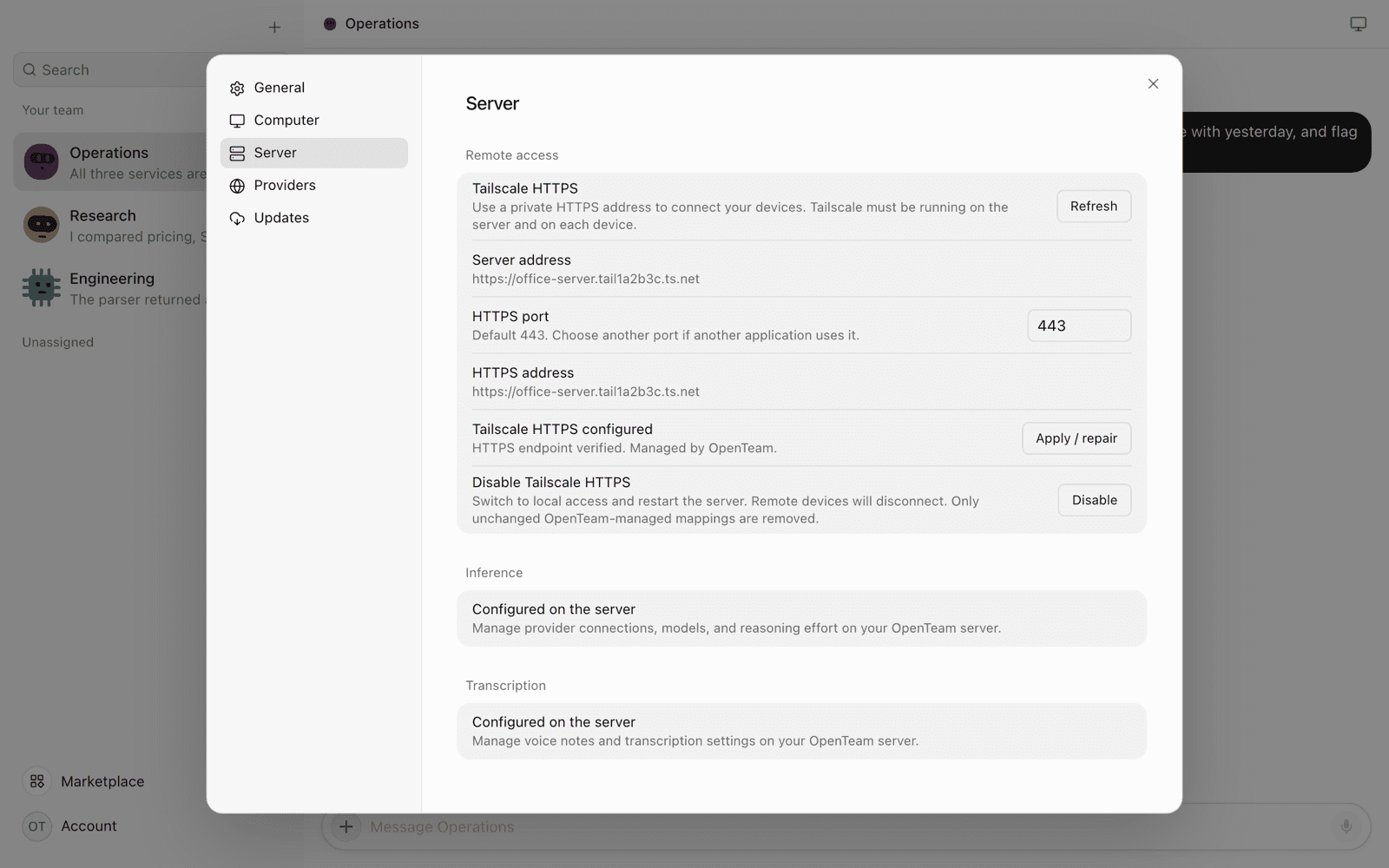
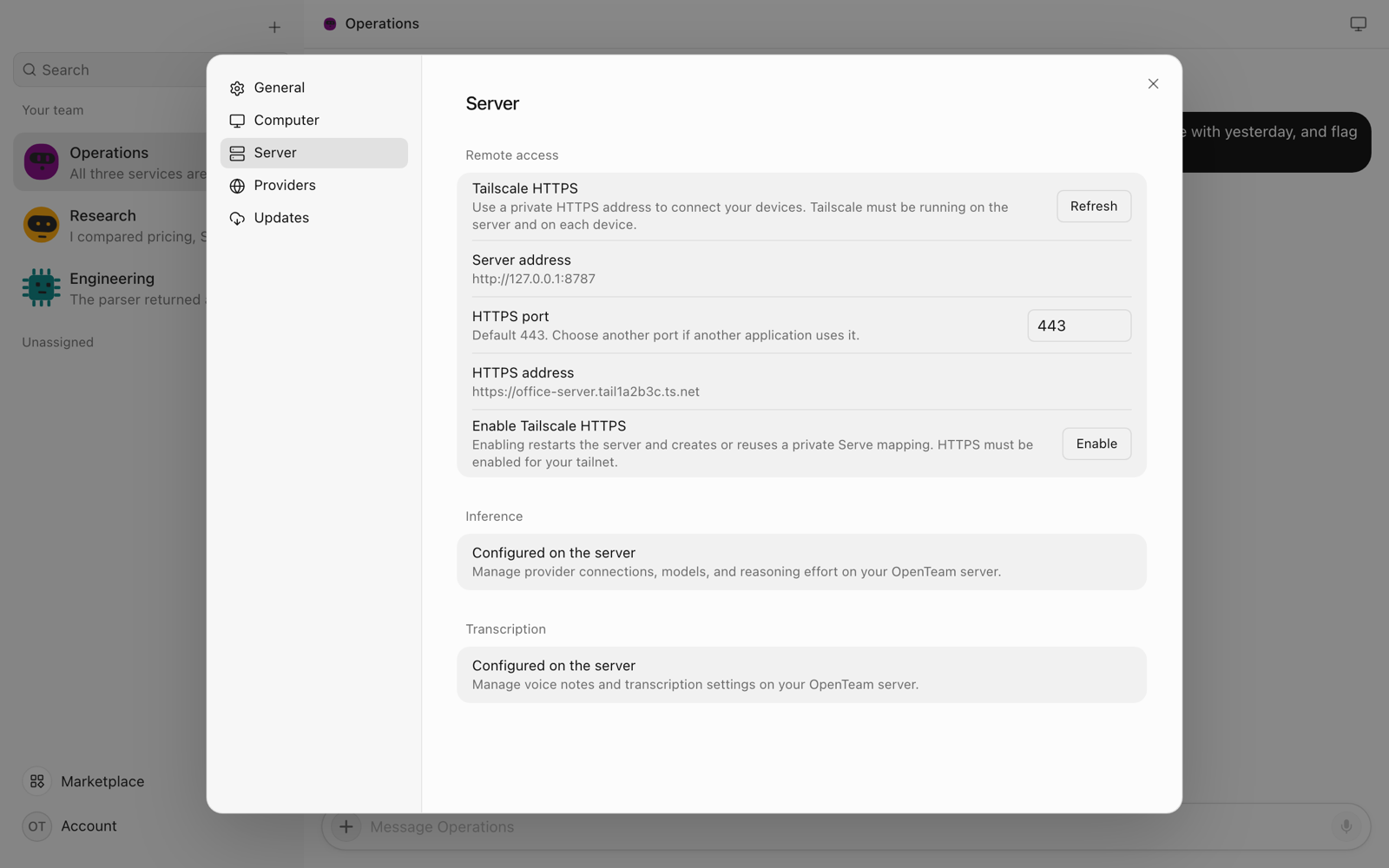
With the desktop app on the server host, open Settings → Server. Under Remote access, set the HTTPS port, check the HTTPS address, and choose Enable on Enable Tailscale HTTPS. The app runs the same command for you.
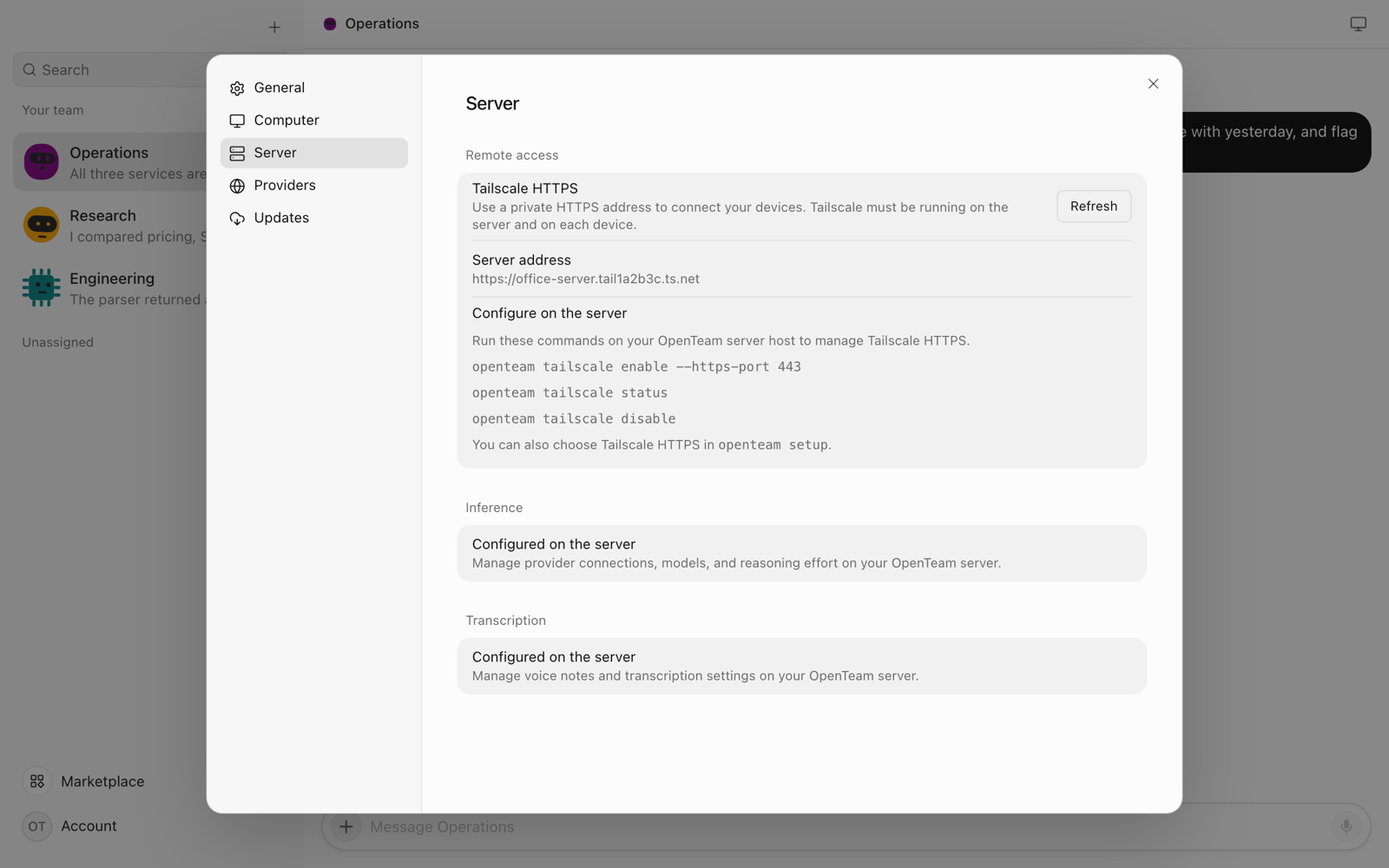
For a server on another machine, the section shows Configure on the server with the commands to run there instead.
Step 2: Reconnect your apps with the new address
Once the switch succeeds, the old LAN http:// address stops working. On each device, connect Tailscale first. Then:
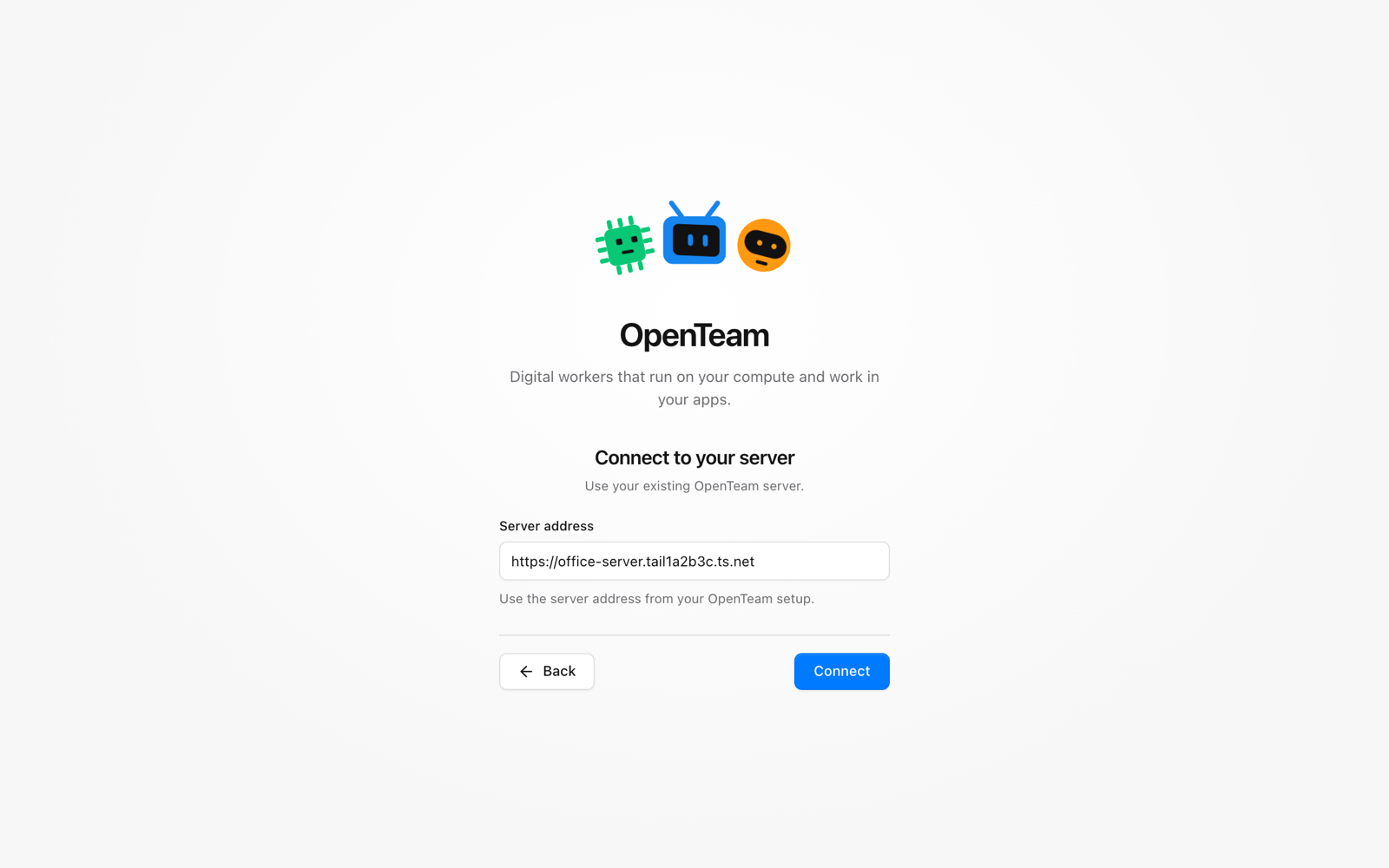
- Desktop: sign out (Settings → General → Sign Out), choose Log In, enter the HTTPS address under Server address, choose Connect, and sign in.
- iPhone: choose Sign out in the app's settings, then enter the same address under Connect to your server.
If you registered a Google or Slack redirect URI before the change, update it. Each plugin's page shows the new one as Authorized redirect URI, such as https://office-server.tail1a2b3c.ts.net/api/v0/plugin-oauth/callback.
Step 3: Check it with openteam tailscale status
Run openteam tailscale status on the server host. A healthy setup prints:
Tailscale HTTPS: enabled
Server: https://office-server.tail1a2b3c.ts.net
Backend: http://127.0.0.1:8787
Route: matching (openteam)
OpenTeam-managed mappings: 1
Route reads matching when Serve forwards the address to OpenTeam, missing when the mapping is gone, and conflict when something else holds the port. The bracket shows the owner: openteam, or external for a matching mapping you made. Status also rechecks the HTTPS address, and on a problem it prints the fix and exits with code 2. openteam status and openteam doctor check the mapping too.
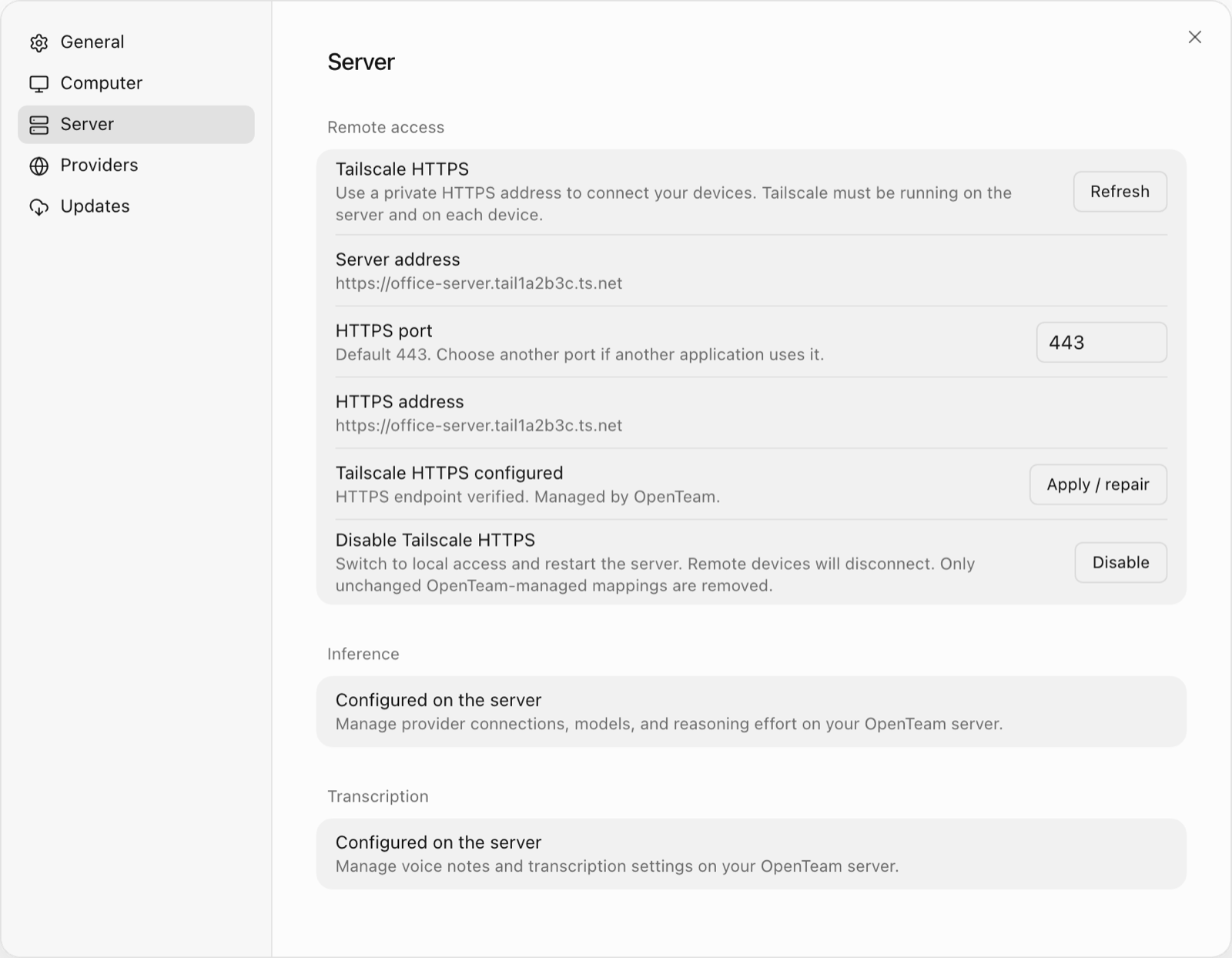
What OpenTeam checks, and what it leaves alone
- Before switching, it checks that Tailscale is running and signed in, that the machine has a MagicDNS name and HTTPS certificates, and that the HTTPS port is free. A missing piece stops the change with the fix.
- After switching, it checks that the name resolves, the server reports ready at the new address, and the certificate is trusted with at least seven days left.
- If anything fails, it restores the previous configuration, removes any mapping it created on the way, and shows the error. In 0.0.1, setup fell back to private HTTP instead.
- It tracks what it owns. Mappings it creates go into
tailscale-routes.jsonin the installation folder, and it removes only those, only if unchanged. Keep the file with your backups. - It leaves the rest alone: other apps' routes, extra path handlers, foreground
tailscale servesessions and Funnel settings. It won't take a port where Funnel is on or another route listens. - Changes restart OpenTeam. Enabling, changing the port and disabling all restart the services, which can interrupt a running task.
Turn it off
Run openteam tailscale disable, or choose Disable in Remote access. The server switches to This machine only (http://127.0.0.1:8787) and restarts, so remote devices disconnect. OpenTeam removes the mappings it created, if unchanged. A mapping you made, or one it reused, stays until you remove it, for example with tailscale serve --https=443 off (Serve CLI). To reach the server from other devices again, run openteam setup and pick a mode.
Tailscale HTTPS vs OpenTeam's other connection modes
Modes as named in openteam setup in 0.0.2, from the remote access docs.
| Mode | Address | Who can reach it | Best for |
|---|---|---|---|
| Private network (default) | http:// LAN or VPN address | Your network or VPN | Home or office use |
| This machine only | http://127.0.0.1:8787 | The server host | App and server on one computer |
| Tailscale HTTPS | https://<machine>.<tailnet>.ts.net | Devices in your tailnet | Private access from anywhere |
| Public domain with automatic HTTPS | https:// your domain | The internet, behind sign-in | Devices that can't run Tailscale |
| Use my existing HTTPS setup | https:// your proxy's host | Whatever your proxy allows | An existing nginx, Caddy or Traefik proxy |
A sixth mode, Public address without HTTPS, is for temporary testing only.
Tailscale HTTPS needs Tailscale on every device that connects. To reach your bots from a device that can't run it, such as a locked-down work laptop, use Public domain with automatic HTTPS. It needs a domain pointed at the server and inbound ports 80 and 443. Routines triggered by GitHub, Slack or Linear webhooks also need a public HTTPS address, because those services can't reach a tailnet (routines).
In every mode, a server has one human account and one model, and bots act without approval prompts, so anyone who signs in controls them. Introducing OpenTeam lists the other limits.
Upgrading from OpenTeam 0.0.0 or 0.0.1
Setup in 0.0.0 and 0.0.1 could create a Tailscale Serve route for you, recorded as Use my existing HTTPS setup. After openteam update, it keeps working. To manage it with the new commands, run openteam tailscale enable. It reuses your address and port, so your apps keep the same URL. OpenTeam has no record of creating that older route, so status shows external, and disable leaves it forwarding until you remove it.
Troubleshooting
MagicDNS or HTTPS certificates are off
"No Tailscale MagicDNS hostname was found" means MagicDNS is off; "Enable HTTPS certificates for your tailnet" means HTTPS is. Turn on the missing one on the DNS page and retry. If Tailscale returns its own approval link, OpenTeam shows it.
Tailscale denied permission to manage Serve
OpenTeam runs tailscale serve as your user. On Linux, that user must be Tailscale's operator: run sudo tailscale set --operator=$USER, then retry (Tailscale CLI).
Port 443 is already taken
The error reads "Tailscale Serve port 443 has an incompatible route or a foreground session is active." Another app's route, Funnel on that port, or a tailscale serve running in a terminal causes it. Check tailscale serve status, then stop the session or run openteam tailscale enable --https-port 14443.
The mapping went missing or changed outside OpenTeam
Serve mappings survive restarts, but tailscale serve reset or a manual edit can remove or change them. For missing, run openteam tailscale enable. For conflict, OpenTeam leaves the route alone: inspect tailscale serve status, then move the other route or pick another port. After renaming the machine, run enable again and reconnect your apps.
The apps can't connect after the switch
"Could not reach this OpenTeam server" usually means the device isn't on Tailscale or the app still has the old http:// address. Connect Tailscale and check the address, including any port suffix. openteam status on the server prints the current one.
Google or Slack sign-in fails with a redirect error
Copy the new Authorized redirect URI into your Google OAuth client or Slack app. Google clients made for an HTTP server are Desktop app clients; for HTTPS, create a Web application client (Google). Sign in from a device in your tailnet, since the callback goes to the ts.net address.
Frequently asked questions
Is my server exposed to the internet with Tailscale HTTPS?
No. Serve shares OpenTeam only within your tailnet, the app and screen ports stay on loopback, and Funnel stays off. Any device your Tailscale access rules allow can reach the sign-in page, so a tailnet is only as private as the devices and keys in it. Tailscale's write-up of the Hugging Face intrusion, where a stolen auth key enrolled 181 nodes, makes that point.
Do I need Tailscale on my phone to access my AI agents?
Yes. Install Tailscale on your iPhone, sign in to the same tailnet and keep it connected. Without it, the phone can't reach the ts.net address.
Does Tailscale HTTPS cost anything?
Usually not. OpenTeam is free, and Tailscale's Personal plan is $0 for up to six users with unlimited devices, for non-commercial use. Work use needs a paid plan, from $8 per user per month (Tailscale pricing).
Can I use my own domain instead?
Yes, with a different mode. Serve names stay on your tailnet's ts.net domain (Serve). For your own domain, choose Public domain with automatic HTTPS, or Use my existing HTTPS setup behind your proxy.
Will it break other things I serve with Tailscale?
No. OpenTeam leaves other routes, foreground sessions and Funnel settings alone, won't take a port in use, and removes only unchanged mappings it created.
How do I turn off Tailscale HTTPS?
Run openteam tailscale disable on the server host, or choose Disable in Settings → Server → Remote access. The server switches to This machine only.
Try OpenTeam
Install the server with curl -fsSL https://openteam.so/install | sh on macOS or Linux, or irm https://openteam.so/install.ps1 | iex in Windows PowerShell, then follow the quickstart. The apps are on the download page. For how OpenTeam's defaults handle network exposure, see our OpenClaw alternative post.