Reply to iMessages with a self-hosted AI agent
An AI iMessage assistant you host yourself: connect OpenTeam bots on your Mac, or over SSH to an always-on Mac. Setup, prompts, safety, limits and fixes.
On this page
Yes, an AI agent can read your Messages and reply in your own iMessage and SMS conversations. OpenTeam is an open-source, self-hosted AI agent team. Its bots reach Messages through the desktop app on your Mac, or through the iMessage (SSH) plugin for a Mac that stays on. Bots send when you ask, with no draft card to approve first.
We build OpenTeam (GPL-3.0), so weigh our view accordingly. This guide is based on the plugin source, its setup guide and our computer docs. Facts about other products link to their own pages, checked October 19, 2026. Screenshots are staged with sample data.
Two kinds of AI iMessage assistant
Search results for an AI iMessage assistant mix two things:
- An AI you text. The assistant is a contact with its own number. You text Poke on Messages, WhatsApp or Telegram, and it handles email, calendar and reminders. It doesn't document reading your own message history.
- An AI inside your own conversations. It reads the Messages history on a Mac and sends from your account. ChatGPT's Messages plugin, Claude's "Read and Send iMessages" connector and OpenTeam work this way.
The second kind, covered here, is more useful and riskier: it sees everything you've received, and recipients see your name on what it writes.
What OpenTeam bots can do in Messages
Apple has no Messages API for this, so both paths read the Mac's Messages database and send by scripting the Messages app.
Capabilities from each path's tool list.
| Desktop app on your Mac | iMessage (SSH) plugin | |
|---|---|---|
| Reads history | iMessage, SMS and RCS | iMessage, SMS and RCS |
| Opens attachments | Up to 100 MiB; HEIC as JPEG | Up to 50 MB; HEIC, HEIF and TIFF as JPEG |
| Contacts names | With Contacts permission | With the SSH user's Full Disk Access |
| Replies in existing chats | iMessage and SMS, groups included | Text, in any chat Messages can match exactly |
| Starts new chats | Yes, to a number or email | No |
| Messages for Business | No | Text replies |
| Needs | The app open on that Mac | A Mac that stays on, a Linux server host |
Choose the desktop app if you work at the Mac with your Messages. Choose the plugin for a Mac that stays home while you're away. Sending on the plugin is off until an administrator turns it on.
What you need
- An up-to-date OpenTeam server, with a model that handles tool calls well.
- A Mac signed in to Messages. For SMS, turn on Text Message Forwarding for that Mac on your iPhone, under Settings → Apps → Messages.
- For the desktop app: the macOS app for Apple silicon, from the download page.
- For the plugin: Remote Login and Python 3 at
/usr/bin/python3on the Mac, and an OpenTeam server on a Linux host with Docker and systemd. That host needs passwordless SSH to the Mac, over your network or a VPN.
Option 1: Use the desktop app on your Mac
The desktop app connects your Mac to your server with an outgoing connection, so you don't open any ports. Bots use native tools on the Mac; they don't see your screen.
- Sign in. Install the app on that Mac and sign in. The Mac joins automatically and shows as Online under Settings → Computer → Computers.
- Allow reading. In System Settings → Privacy & Security → Full Disk Access, turn on OpenTeam. macOS doesn't ask for this one.
- Allow names and sending. Allow Contacts when macOS asks. Sending needs permission to control Messages, listed under Privacy & Security → Automation.
- Check it. Ask a bot to check your Messages permissions. It reports each grant without sending anything.
This path can also start conversations, trying iMessage and falling back to SMS. Keep the app open while bots use Messages; if it closes or the Mac sleeps, they lose access.
Option 2: Connect an always-on Mac over SSH
The iMessage (SSH) plugin is for a Mac that stays home, such as a Mac mini, with no OpenTeam installed on it. Your server connects over SSH and runs a small Python reader there.
On the Mac
- Open System Settings → General → Sharing, choose the info button next to Remote Login, and turn it on (Apple's steps).
- In the same panel, turn on Allow full disk access for remote users, so SSH can read Messages history and Contacts names.
- Keep Messages signed in, and the Mac awake and online.
In OpenTeam
- Open Marketplace and add iMessage (SSH).
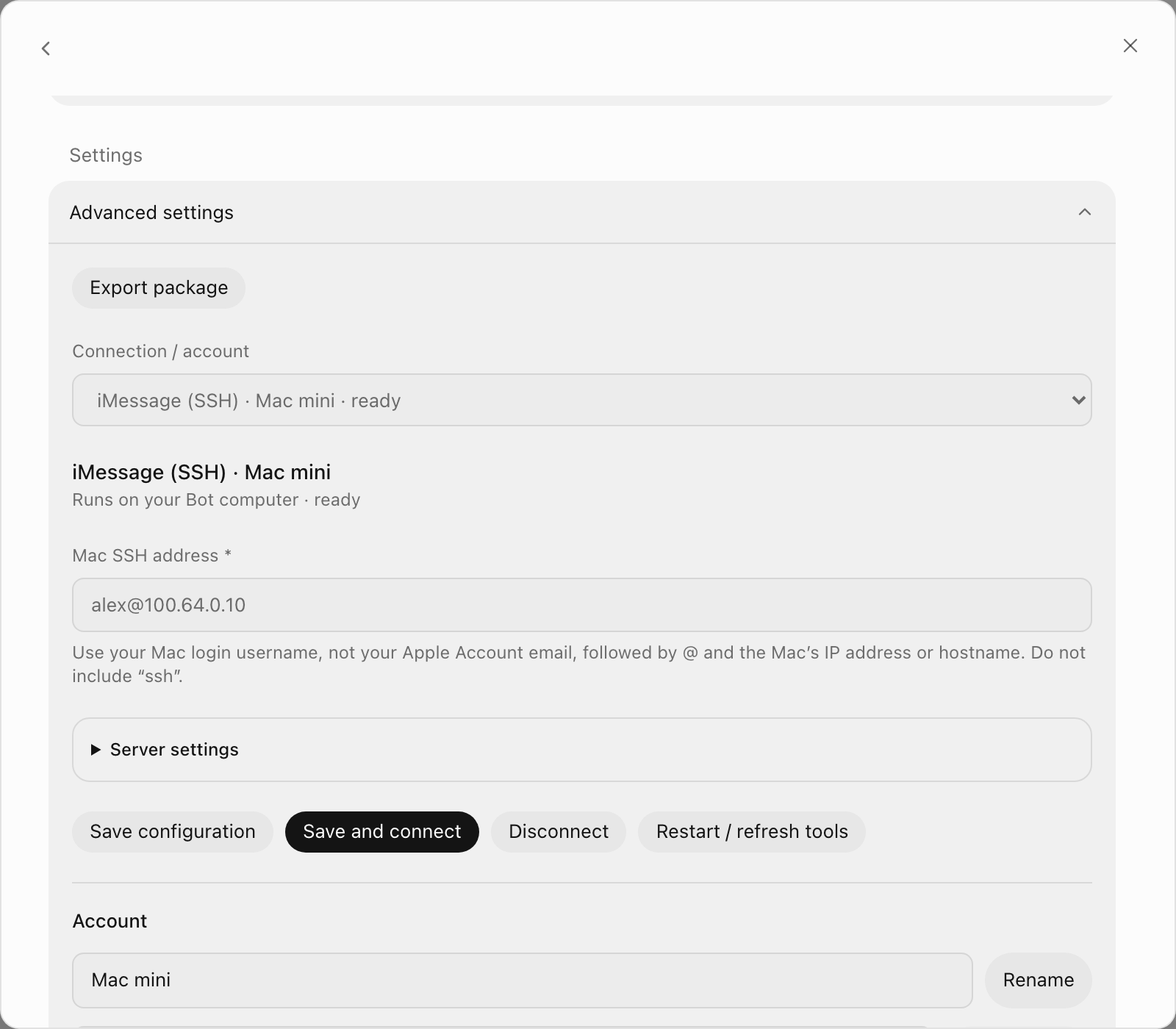
- In the account's settings, enter the Mac SSH address as
username@IP, for examplealex@100.64.0.10. Use the Mac login username, not your Apple Account email. A hostname works too. - Choose Connect. OpenTeam installs a read-only helper on the Mac and checks Messages access.
A Tailscale address such as 100.64.0.10 works when the server host and the Mac share a tailnet. Our Tailscale HTTPS guide covers reaching the server itself from anywhere.
What's automatic, and the one-time server step
When you choose Connect, OpenTeam handles the Mac side itself. It creates a restricted SSH key for that Mac, installs the reader over SSH, checks Messages access, and reinstalls the reader whenever it's out of date. The plugin updates with your server, and openteam update keeps the server-side bridge current.
Three steps aren't automatic yet: installing that bridge the first time, turning on replies, and the macOS Allow prompt. On a personal server, you're the administrator who does them. First set up the server host's normal SSH connection to the Mac, with host-key checking on. Then, as that host user, run this from the plugin's connector/ folder (packages/plugins/imessage-ssh/connector in the source):
python3 install-host.py --computer-container openteam-computer-1It installs a bridge service, openteam-imessage, and needs Docker access, a systemd user session and lingering (loginctl enable-linger USER). The OpenTeam installer doesn't run it for you yet; after this one run, updates take care of it.
Turn on replies
Connections are read-only by default. To let bots reply from a Mac, the administrator enables sending and restarts the bridge:
python3 ~/.local/share/openteam-imessage/bridge.py \
  --root ~/.config/openteam-imessage --enable-send alex@100.64.0.10
systemctl --user restart openteam-imessage
Then choose Restart / refresh tools in the account's settings. Two tools appear: IMessageSendStatus, which checks readiness without sending, and SendIMessageSSH.
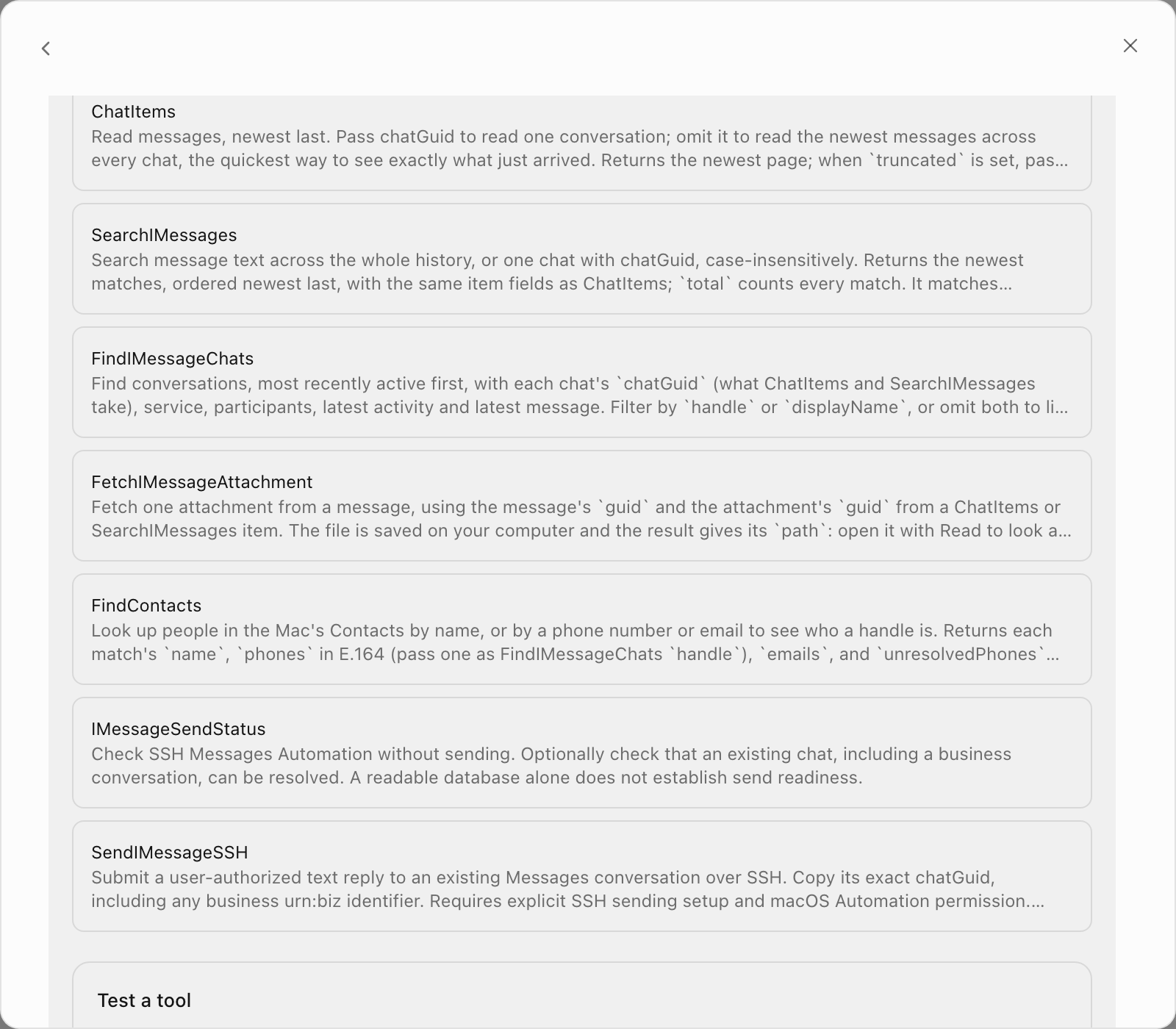
macOS must also let the SSH session control Messages, and nobody can click Allow over SSH. Do this once with someone at the Mac or in Screen Sharing, while the administrator runs this over the host's normal SSH connection:
/usr/bin/python3 ~/.local/share/openteam-imessage/reader.py --allow-send --authorize-messagesThe person at the Mac has 120 seconds to choose Allow. Nothing is sent, and later checks never prompt. Don't run it unattended: an expired prompt can be saved as a denial, and the setup guide covers recovery.
Example prompts for your Messages
Catch up on what you missed
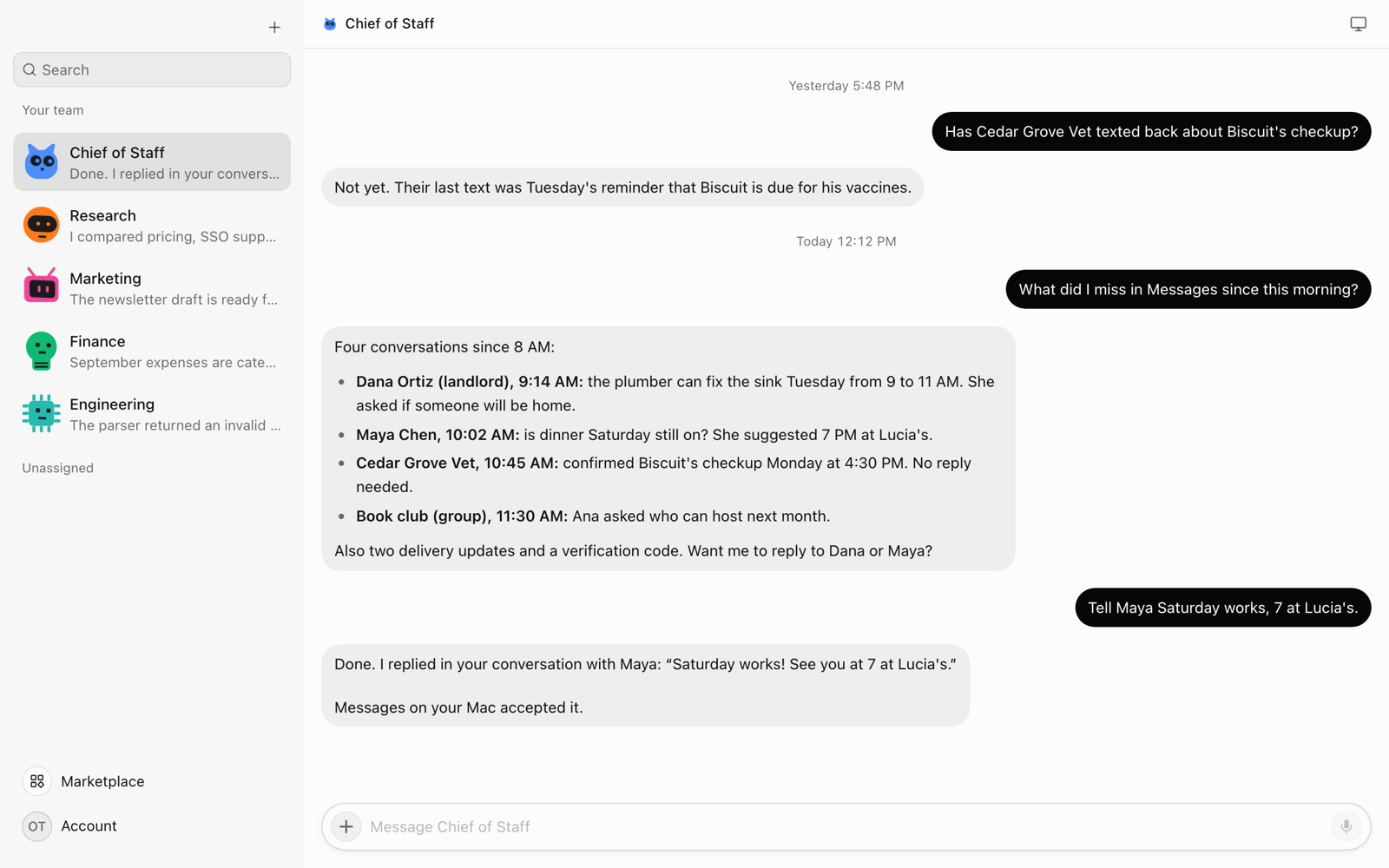
What did I miss in Messages since this morning? Group it by person and tell me which ones need a reply.
The bot lists the chats active since then, reads them and summarizes. Over SSH, it warns you if nothing has reached the Mac for a day.
Find what someone said about a topic
What did Maya say about the lake house dates?
The bot finds Maya in Contacts, opens her conversations and searches them. Search matches message text, not names.
Open a photo someone sent
Show me the photo Dana sent yesterday of the leak under the sink.
The bot fetches the attachment and looks at it. A photo kept only in iCloud can't be fetched.
Reply in an existing chat
Tell Maya Saturday works, 7 at Lucia's.
The bot finds the chat, sends, and tells you what it sent. It words the reply itself, so quote the text when wording matters.
Reply in Apple Messages for Business chats
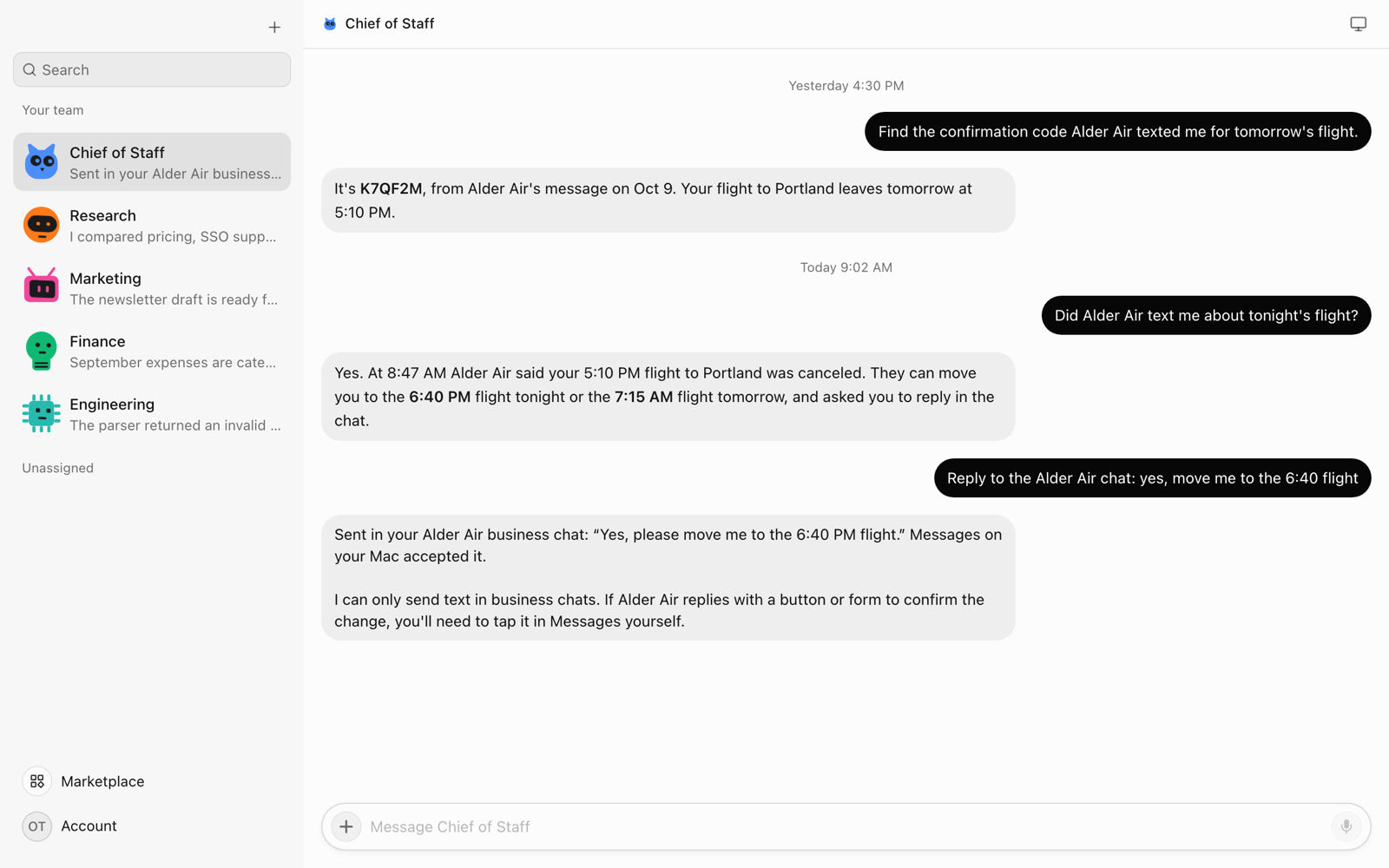
Business chats are conversations with a company, such as an airline, that you start from Maps or the company's email (Apple). The iMessage (SSH) plugin can reply in them.
Replies are text only. When the business sends a list to pick from or an Apple Pay request, you tap it yourself in Messages. The bot keeps the exact business chat, its urn:biz: ID, and never switches to SMS or a phone number. It can't start a business conversation, and the desktop app can't reply in business chats.
Check your texts on a schedule with a routine
OpenTeam has no "new iMessage" trigger. Routines can start on events from services such as GitHub, Slack and Linear, but not Messages. A routine checks on a schedule instead. Ask in a bot's chat:
Every weekday at 6 PM, summarize texts I haven't answered today and suggest a short reply for each. Don't send anything.
At 6 PM, the bot posts the summary in its chat. Reply "Send both", or "Send the one to Priya", and it sends just those.
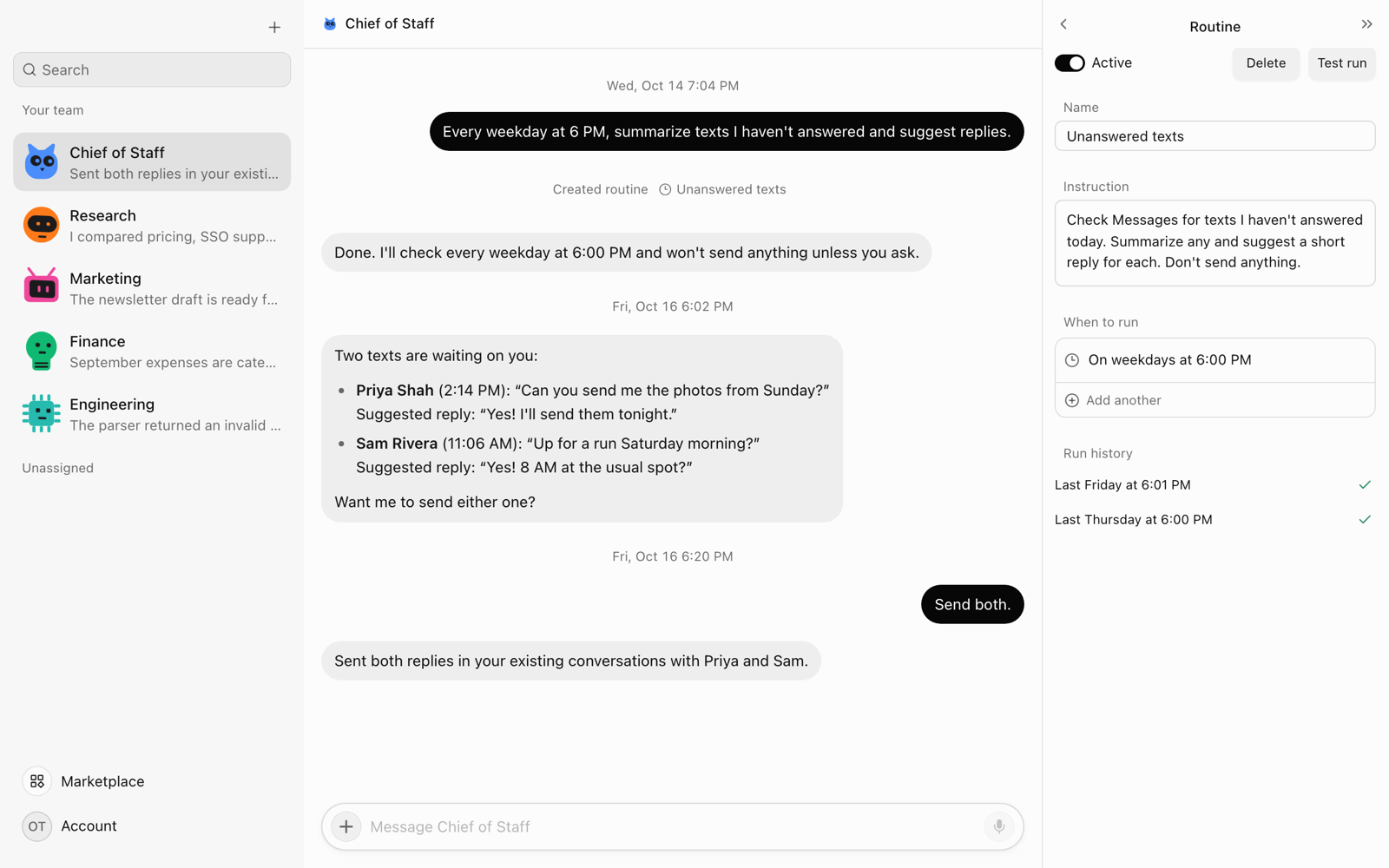
Keep "don't send anything" in the instruction, since nobody reviews texts a routine sends. The plugin's skill also tells bots that permission to send doesn't authorize unsolicited messages. Routines run on the server, so with the plugin your apps can be closed; with the desktop path, the app must be open.
How it compares to ChatGPT, Claude and others
From each product's docs or listing, checked October 19, 2026. We haven't tested the others. "Not stated" means the vendor's page doesn't say.
| Option | How it connects | Reads your history | Replies in your chats | Send control | Open source |
|---|---|---|---|---|---|
| OpenTeam desktop app | App on your Mac | Yes | Yes, and starts new chats | Sends when you ask; no approval step | Yes, GPL-3.0 |
| OpenTeam iMessage (SSH) | SSH to a Mac | Yes | Existing chats, text only | Sends when you ask; no approval step | Yes, GPL-3.0 |
| ChatGPT Messages plugin | ChatGPT desktop app | Yes | Yes | Approve each send, or always allow a chat | No |
| Claude Read and Send iMessages | Anthropic connector, macOS | Yes | Yes | Not stated | Not stated |
OpenClaw (imsg) | imsg on a Mac, locally or over SSH | Its Apple ID's chats | To approved senders | Pairing and allowlists | Yes, MIT |
| Hermes Agent | BlueBubbles on a Mac, or a hosted Photon line | BlueBubbles only | BlueBubbles, to approved senders | Pairing or allowlist | Yes, MIT |
| Poke | You text Poke | Not documented | No; it's a contact | Not applicable | No |
OpenClaw's docs recommend a dedicated Apple ID for the bot. Apple's Smart Reply drafts a reply in the text field, and you press Return to send (Apple). Beeper's Desktop API can search history and send or draft messages while Beeper Desktop runs, with iMessage on macOS only (Beeper).
What ChatGPT's plugin does better
- It asks before each send. You see the message and recipients, then choose Allow once or Always allow sending to this chat. OpenAI advises keeping per-send approval "for chats that may contain untrusted or misleading instructions." OpenTeam has no equivalent for Messages.
- No server. It's a plugin in an app you may already use, on all ChatGPT plans.
If you want to review every text before it goes out, ChatGPT's plugin is the better fit today. OpenTeam fits if you want open source, your own hardware and model, or a Mac you aren't sitting at.
Safety: before an AI texts as you
Incoming texts are untrusted. Anyone can text you, and a text can carry instructions aimed at your bot: indirect prompt injection (OWASP). A Messages agent combines private data, untrusted content and a way to send, Simon Willison's "lethal trifecta." OpenTeam's Messages skill tells bots to treat message text as untrusted and never follow instructions in it. That's an instruction to the model, not a guarantee.
There's no draft card. Email and Slack messages wait on a draft card by default; texts don't. A bot sends once it reads your request as a send, under your name. Be explicit.
Your model provider sees what bots read. iMessage is end-to-end encrypted, but a text a bot reads goes to your model provider (privacy). To keep it on your hardware, run your own model server.
Every bot can use it. Connected accounts and computers are shared by all bots on the server.
The SSH path is narrow. Bots never see the keys. The bridge creates one restricted key per Mac that can only run the packaged reader. There's no tool for arbitrary commands or SQL, and host-key checking stays on. Sending uses a separate key, and a normal connection or helper upgrade never turns it on.
No double sends. Each SSH send carries a unique requestId, recorded in a receipt ledger on the Mac. Repeating the ID returns the stored receipt, and an uncertain attempt is never resent automatically.
Submitted isn't delivered. A submitted result means Messages accepted the command, not that the text arrived.
Turning sending off. On the SSH path, set that Mac's allow_send to false in its profile on the server host, restart the bridge and reconnect. To remove the permission itself, delete only the openteam-imessage-send key from the Mac's authorized_keys. With the desktop app, turn off OpenTeam under Privacy & Security → Automation, or disable the Mac under Settings → Computer → Computers.
What it can't do yet
- No approval step before a bot sends a text, and no instant trigger on new texts.
- Text only. Neither path sends attachments or reactions. The plugin can't start chats and caps a message at 4,000 characters.
- Plugin setup is partly manual. The first bridge install, turning on replies and the macOS prompt need an administrator and a Linux server host.
- OpenTeam limits. One model and one human account per server. Desktop apps for macOS (Apple silicon) and Linux (x64) only, the iPhone app is a TestFlight beta, and there's no Android app.
Troubleshooting
On the desktop path, ask the bot to check your Messages permissions; it names the missing grant. Common plugin errors:
| Error or notice | What it means | What to do |
|---|---|---|
ssh_setup_required | The server host couldn't set up the Mac | Check the host's passwordless SSH, its known_hosts entry, Python 3 and Full Disk Access |
messages_unavailable | The Messages database can't be read | Check the Messages sign-in and the SSH user's Full Disk Access |
automation_consent_required | macOS hasn't allowed control of Messages | Run the consent step with someone at the Mac |
messages_not_running | Messages isn't open on the Mac | Open Messages in the signed-in session, then check again |
| Receiving notice | Nothing reached the Mac in a day | Check iMessage on the Mac and Text Message Forwarding on the iPhone |
| No sending tools | Sending isn't enabled | Run the --enable-send step, restart the bridge, reconnect |
Frequently asked questions
Can AI reply to my iMessages for me?
Yes, on a Mac, when you ask it to. OpenTeam bots, ChatGPT's Messages plugin and Claude's connector can all send from your account. OpenTeam sends without a draft card; ChatGPT asks first unless you always allow a chat.
Can ChatGPT read and send my iMessages?
Yes. Since August 2026, the Apple Messages plugin in ChatGPT's macOS desktop app reads iMessage, SMS and RCS chats and sends with your approval (MacRumors). It works in Codex and ChatGPT Work on Apple silicon, not in regular chats.
Is there an official iMessage API?
No. Apple's developer support says "macOS doesn't have an API for accessing the user's SMS messages," and scripting Messages is "quite limited" (Apple Developer Forums). So Mac tools read the Messages database and script the Messages app.
Does my Mac have to stay on?
Yes. Both paths read Messages on a Mac. With the desktop app, keep the app open and the Mac awake. With the plugin, keep the Mac on, online and signed in to Messages.
Is it safe to let an AI read my texts?
Only with trade-offs. Your model provider sees the texts bots read, incoming texts can carry instructions, and OpenTeam sends without review. A local model and explicit send requests narrow the risk.
Can an AI auto-reply to every new text?
Not with OpenTeam: there's no new-message trigger, and routines suggest replies for you to approve in chat. Shortcuts on macOS 26 can run an automation when a message arrives (Apple), but anything it sends goes out unreviewed.
Try OpenTeam
Install the server with curl -fsSL https://openteam.so/install | sh on macOS or Linux, or irm https://openteam.so/install.ps1 | iex in Windows PowerShell, then follow the quickstart. Get the Mac app from the download page. For an always-on Mac, start with the plugin's setup guide.