How to self-host AI agents on a cloud VM or home server
Self-host AI agents with OpenTeam on a VPS, Mac mini or home server. One install command, then connect a model and create a first bot in the app.
On this page
To self-host AI agents with OpenTeam, install Docker on a machine that stays on, run one command, and finish setup in the desktop or iPhone app. OpenTeam is an open-source (GPL-3.0), self-hosted AI agent team, and each bot gets its own Linux desktop and browser. Plan on 8 GB of RAM, and expect the bots to stop whenever the host sleeps.
We build OpenTeam, so weigh our view accordingly. This guide follows the installer, command-line tool and app source. Prices link to each provider's own page and were checked on October 21, 2026. Screenshots are staged with sample data: a home server at 192.168.1.20 and a user named sam.
What you need to self-host AI agents
The terminal installs the server and creates your account. The app then connects an AI model and creates your first bot.
- A host: macOS, Windows or Linux, on x64 or arm64.
- Docker with Compose 2.20 or newer, running. That's Docker Desktop on a Mac or Windows PC, or Docker Engine with the Compose plugin on Linux.
- 8 GB of RAM and 8 GB of free disk, recommended. Setup warns below either but doesn't stop you. Updates need 4 GB free.
- Ports
8787for the server (changeable) and6200–6299for bot screens, plus80and443for automatic HTTPS. - An AI model: an OpenAI, Anthropic or OpenRouter API key, or your own model server.
- An app: the desktop app for macOS on Apple silicon or Linux x64, or the iPhone beta on TestFlight (iOS 18 or later). There's no Windows desktop app yet, so finish a Windows host's setup from a Mac, a Linux PC or an iPhone.
Which machine should you use?
The server runs four services: the server itself, a worker, a database and the bots' computer. The computer holds every bot's desktop, up to 100 of them in one container. We covered how that works in giving every AI agent its own computer.
Most memory goes to the bots' browsers. In our measurements on a Mac, a bot working in four tabs of one site used about 0.8 GiB. The server, worker and database idled at a few hundred megabytes. Your sites will differ.
| Machine | Good for | Watch out for | Cost |
|---|---|---|---|
| Mac mini | A quiet always-on server at home | Turn off sleep; Docker Desktop gets half the Mac's RAM by default | From $899 with 16 GB for the M6 model (Macworld) |
| Home Linux PC or mini PC | Reusing hardware you have | Power cuts and your home network | Hardware you own, plus power |
| Cloud VM, 4 vCPU and 8 GB | Reaching your bots from anywhere | Lock down its ports (see Step 3) | €35.99 a month for a Hetzner CPX32 in Germany or Finland (Hetzner); $48 for a DigitalOcean 8 GiB Basic droplet (DigitalOcean) |
| Your laptop | Trying it for an afternoon | Bots stop when it sleeps | Nothing extra |
Hetzner's prices exclude VAT, and its US locations cost more. Model usage is billed separately by your provider.
CPU cores set how much runs at once: by default, one bot conversation per core, up to 8. Routines don't count toward it.
Memory has two ceilings. Each bot's desktop is capped at 10 GiB. All desktops together get the smaller of 12 GiB and 75% of the Linux host's RAM. On a Mac, that host is Docker Desktop's virtual machine, which gets half the Mac's memory by default (Docker). So a 16 GB Mac mini gives the bots about 6 GiB, unless you raise Docker's memory limit in Settings → Resources.
Step 1: Install Docker and keep the host awake
- Mac: install Docker Desktop and open it once. Turn on Start Docker Desktop when you sign in to your computer, which is off by default (Docker). On a Mac mini, also turn on Prevent automatic sleeping when the display is off in System Settings → Energy (Apple).
- Linux: install Docker Engine and the Compose plugin from Docker's instructions, and let your user run
dockerwithoutsudo. The bots' memory limits need cgroup v2, which current Ubuntu and Debian releases use by default. - Windows: install Docker Desktop and leave it running.
Check that the engine answers before you go on:
docker info
docker compose version
OpenTeam's containers restart whenever Docker starts, unless you stopped them with openteam stop. After a reboot, the bots come back with the engine.
Step 2: Run the OpenTeam installer
Run this on the machine that will host your bots. On macOS or Linux:
curl -fsSL https://openteam.so/install | shIn Windows PowerShell:
irm https://openteam.so/install.ps1 | iexYou can read the installer first. It does four things:
- Downloads the
openteamcommand-line tool from the latest GitHub release and checks it against the release's SHA-256 checksums. - Installs it to
~/.local/bin, or%LOCALAPPDATA%\OpenTeam\binon Windows. - Adds that folder to your
PATHin your shell's startup file. SetOPENTEAM_NO_MODIFY_PATH=1first to leave your startup files alone. - Starts server setup in the same terminal.
Setup first checks memory, free disk, Docker and Compose. On a Mac where Docker Desktop is installed but stopped, it opens Docker Desktop and waits up to two minutes. If Docker is missing, it says where to get it and stops; install Docker, then run openteam setup.
When the checks pass, setup counts down from five. Press Enter to start right away, or Esc to stop; the tool stays installed either way. Setup then downloads the server's release configuration and checks its signature. You don't need Node.js or Bun.
Step 3: Choose how you'll connect
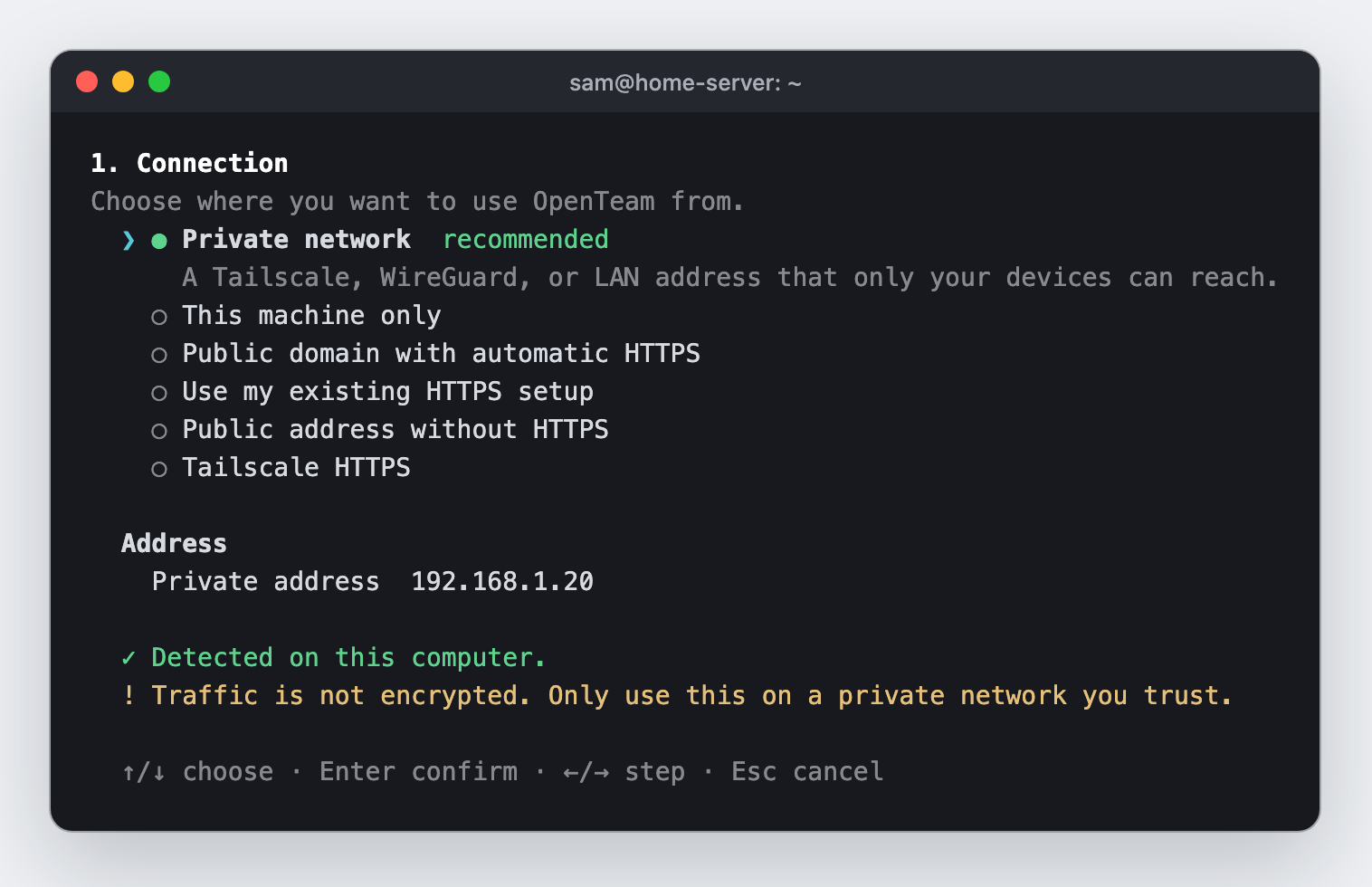
Setup has four stages: Connection, Account, Review and Checks. The connection decides which address your apps use, and who else can reach it.
| Mode | Use it when |
|---|---|
| Private network (the default) | Your devices share a home or office network, or a VPN such as Tailscale |
| This machine only | The server and the desktop app run on the same computer |
| Tailscale HTTPS | You want a private https:// address for every device in your tailnet |
| Public domain with automatic HTTPS | You have a domain and want access from anywhere |
| Use my existing HTTPS setup | You already run nginx, Caddy, Traefik or a cloud proxy |
| Public address without HTTPS | Temporary testing only |
At home, take the default. Setup picks the host's private address and prefers a Tailscale address when it finds one. If Tailscale on the host has HTTPS turned on, a fresh setup selects Tailscale HTTPS instead. See our Tailscale HTTPS guide for that mode.
On a cloud VM, change the default. In Private network mode, the app port and the bot screen ports listen on every network interface of the host. On a cloud VM that can mean the public internet, unless the provider's firewall blocks them. Pick one of these instead:
- Tailscale HTTPS. Install Tailscale on the VM and your devices, and turn on MagicDNS and HTTPS certificates in the Tailscale admin console. OpenTeam's ports then stay on
127.0.0.1, and nothing opens to the internet. - Public domain with automatic HTTPS. Point a DNS record at the VM and allow ports 80 and 443. A bundled Caddy proxy gets the certificate, and the internal ports stay on
127.0.0.1. - Private network behind a firewall. If you keep this mode, block
8787and6200–6299from the internet in your cloud provider's firewall.
To change it later, run openteam setup again. The remote access docs cover every mode.
Step 4: Create your account and start the server
OpenTeam has one account per server, and you use it on all your devices. Pick a username of 3 to 30 letters, numbers, dashes, underscores or dots, starting and ending with a letter or number. Sign-in ignores capital letters. The password needs 8 to 128 characters.
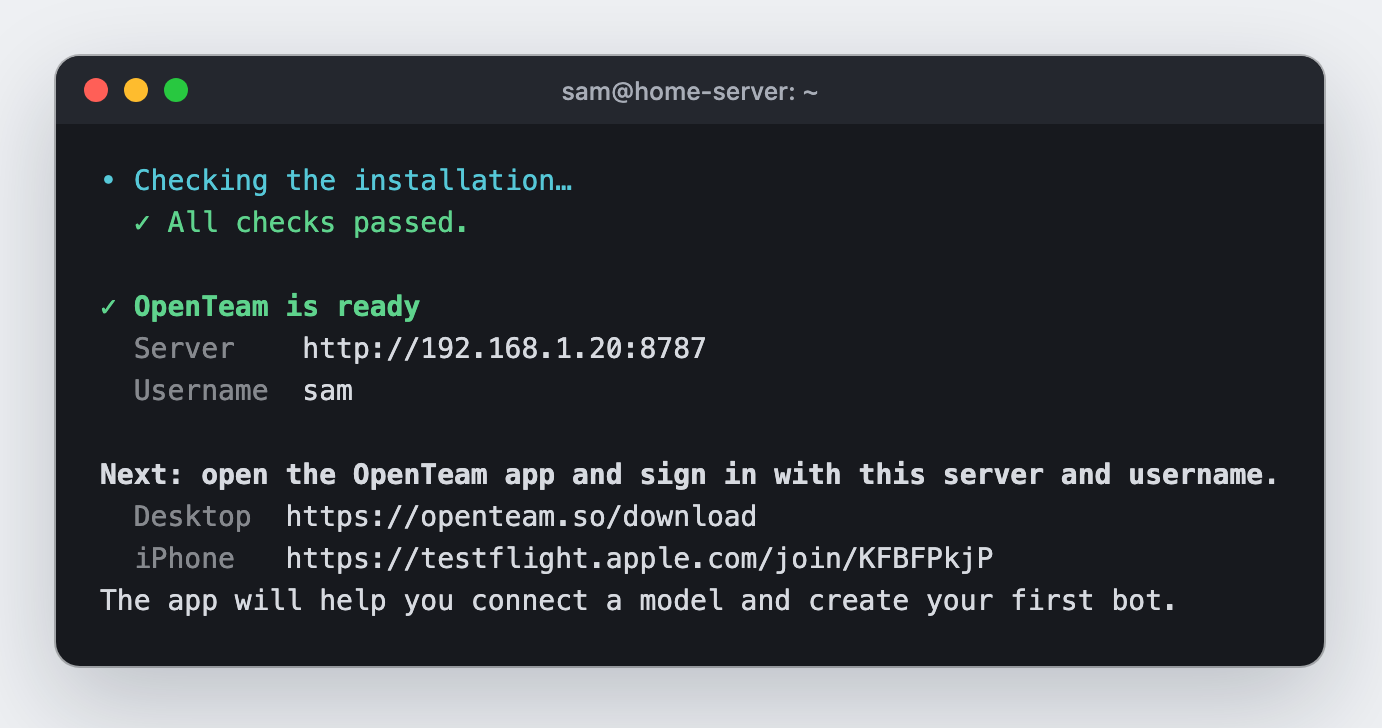
On Review, choose Start OpenTeam. Setup checks that the ports are free, and sends you back to Connection with your answers kept if one isn't. It then downloads the server, about 1.5 GB. Once the server starts and passes its checks, setup prints the two things the app needs.
Step 5: Connect the desktop or iPhone app
Get the desktop app from the download page, or the iPhone beta from TestFlight. Open it and choose Get started. Paste the server address from the end of setup, then sign in with your username and password. When the server runs on the same computer, the app finds it on its own. On another device, never use a localhost or 127.0.0.1 address.
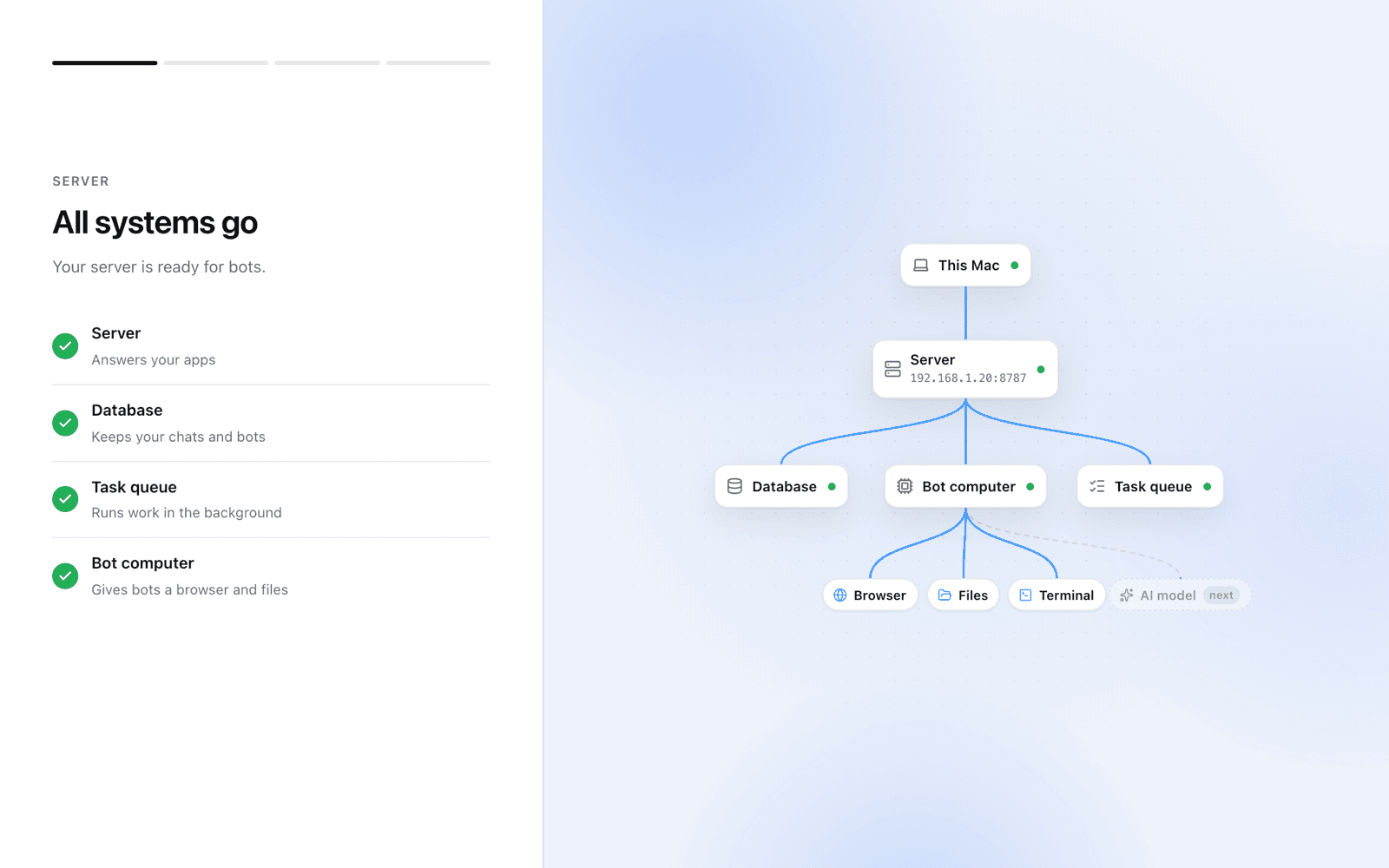
The app then walks you through four short stages, one screen at a time. First it checks that every part of the server answers, and moves on by itself.
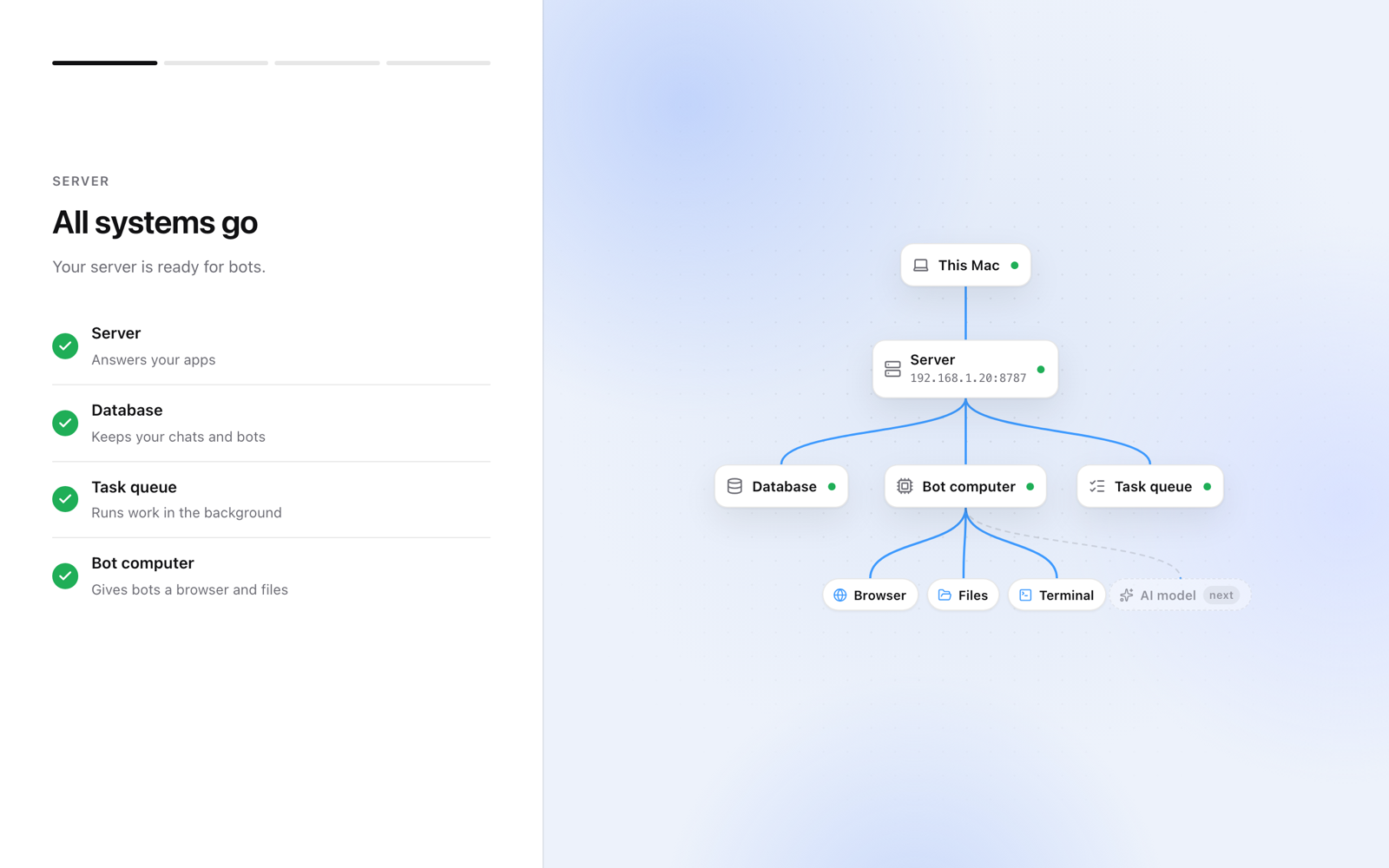
If a part is down, the screen says so and tells you to run openteam doctor on the server.
Step 6: Connect your bots' AI model
Choose ChatGPT, Claude or OpenRouter. For ChatGPT, pick Use an OpenAI API key; for Claude, Use an Anthropic API key. Each key screen links to the page where that provider issues keys.
After you paste a key, the server connects to the provider, loads the models the key allows, and sends one short test message. If the provider refuses the key, the screen says so and you can paste another.
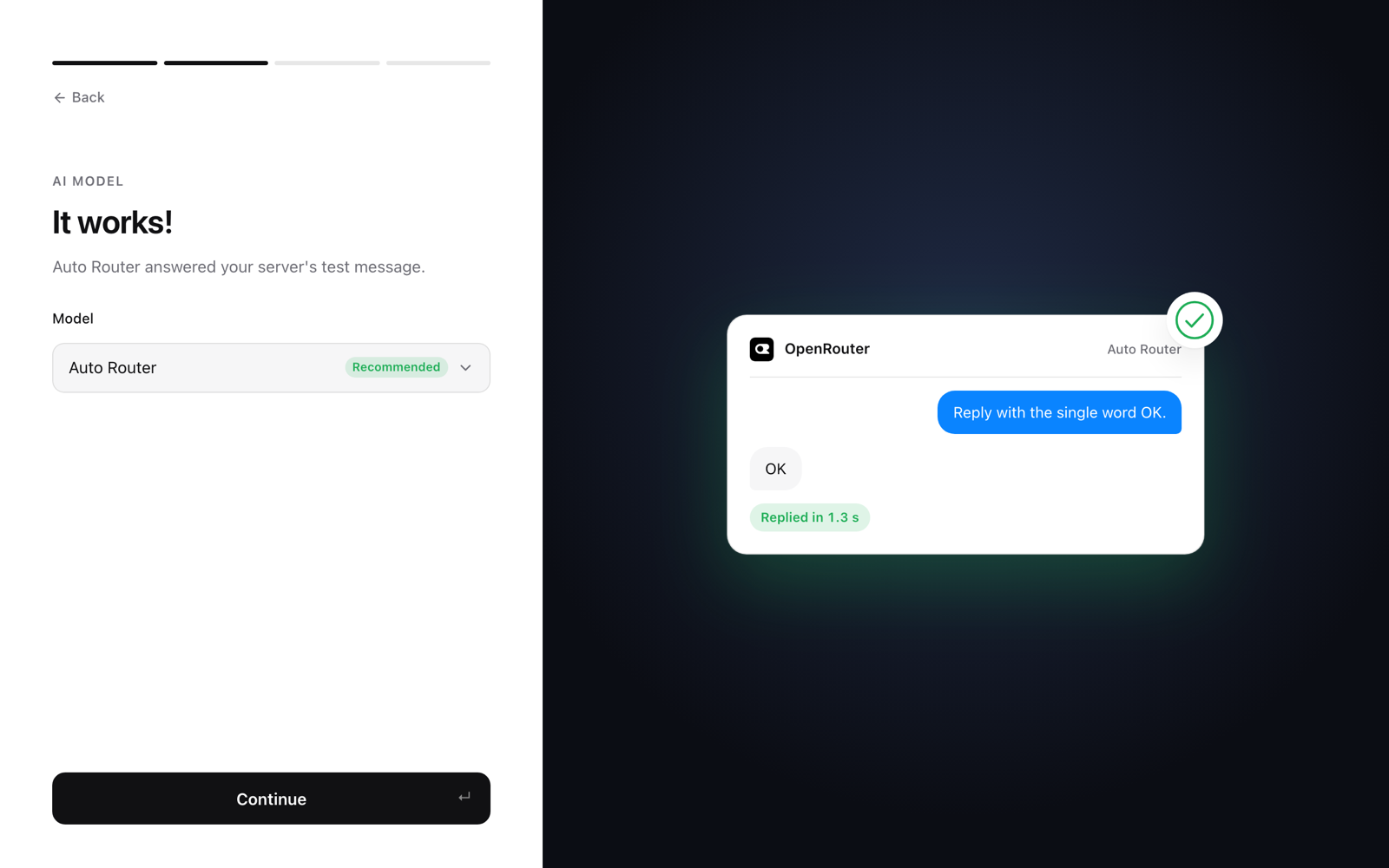
The model menu starts on the provider's recommended model, such as OpenRouter's Auto Router, which picks a model for each request. All bots on a server share this one model. You can change it later in Settings → Model on desktop or iPhone.
Running a local model? Add it on the host first with openteam provider add, and it appears under More providers. The model provider docs show the command for Ollama and other OpenAI-compatible servers.
Voice notes come next. They need an OpenAI or Deepgram key, and you can skip them for now.
Step 7: Create your first bot
Give the bot a name, a look and a job: General helper, Researcher, Inbox assistant, Writer or Operations. The preview shows how it will greet you.
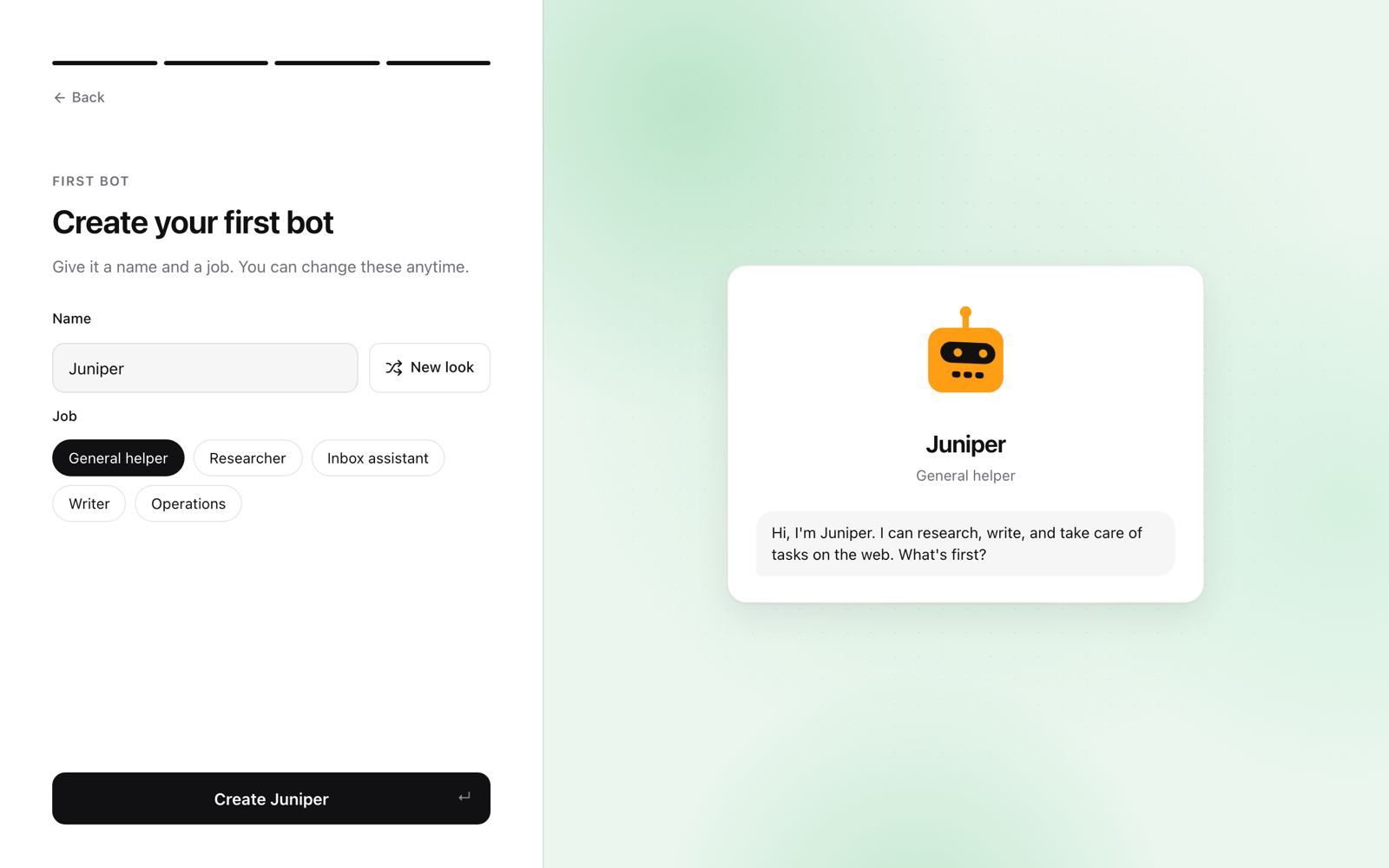
Then give it a small, checkable task, such as:
Create a checklist for moving apartments. Group it by timing, save it as a Markdown file, and attach it here.
The work runs on the server, so you can close the app and check back later. To add bots, choose New chat in the sidebar, then Create new Bot.
Keep your self-hosted AI agents running
Run these on the host:
| Command | What it does |
|---|---|
openteam status | Shows the server address, the version and the health of each service |
openteam doctor | Runs deeper checks, including one short request to your model, and says how to fix each failure |
openteam update | Updates the server and the CLI |
openteam logs server --follow | Streams the server's logs |
openteam setup --advanced | Changes the connection, API port, time zone or how many tasks run at once |
Updates roll back on failure. openteam update checks the new release's signature, backs up the database and restarts on the new version. If it doesn't start, the updater restores the previous version and the database. Bots pause briefly while the server restarts. The desktop app can also start an update from Settings → Updates, on the host itself or over SSH (update docs).
That update backup covers only the database. Website sign-ins, files in /workspace and attachments live in Docker volumes; our backup guide copies all of them.
Troubleshooting a self-hosted AI agent install
"Docker is required," or Docker checks fail. Install Docker if it's missing. Otherwise run docker info; if it can't reach the engine, start Docker Desktop or the Docker service. With several Docker setups, docker context show names the one in use. Data belongs to the engine that created it, so stick with one. Then run openteam setup again.
"Permission denied" on Linux. Your user can't reach the Docker socket. Membership in the docker group grants root-equivalent access to the host. If that's acceptable, run sudo usermod -aG docker $USER, log out fully, then run docker info. Rootless Docker is the other option.
openteam: command not found. Open a new terminal, or add ~/.local/bin to your PATH yourself.
A port is already in use. Another program, or another OpenTeam install, holds 8787 or a port in 6200–6299. Pick another API port with openteam setup --advanced. The screen ports can't be changed, so free them instead.
The app can't find your server. Use the Server address from openteam status, and check that both devices share a network or tailnet. For a public domain, check the DNS record and ports 80 and 443. A custom proxy must forward WebSockets too.
The bot doesn't reply. Look for a question or form waiting in the chat, then run openteam doctor; a key may be out of credit. More fixes are in the troubleshooting docs.
Limits to know before you install
- The host has to stay on. Bots stop when it sleeps or shuts down, and carry on when it's back.
- One account and one model per server. There are no team accounts, and every bot uses the same model.
- Apps: desktop for macOS on Apple silicon and Linux x64, and an iPhone beta. No Windows, Intel Mac or Android app yet.
- Bots share one container. Each bot has its own desktop, but they all run in the same container, with administrator access inside it.
- You run the operations. Updates take one command; backups, disk space and the host's security are yours.
Frequently asked questions
Can I self-host AI agents for free?
Yes. OpenTeam is free and open source under GPL-3.0. You pay for the hardware or VM and for your model provider's usage. A local model removes the model bill, if your hardware can run one well.
Can I run OpenTeam on a VPS?
Yes. A Linux VM with 4 vCPUs and 8 GB of RAM is a good start. Choose Tailscale HTTPS or a public domain with automatic HTTPS, rather than the default Private network mode, which listens on every interface.
Can I self-host AI agents on Windows?
Yes, the server runs on Windows with Docker Desktop. There's no Windows desktop app yet, so you finish setup and chat from a Mac, a Linux PC or an iPhone.
Is a Mac mini good for running AI agents 24/7?
Yes, if it never sleeps and Docker Desktop starts when you sign in. Docker Desktop gets half the Mac's memory by default, and the bots get 75% of that.
How do I uninstall OpenTeam?
Run openteam uninstall. It removes the containers and the CLI but keeps your data, so running the installer again brings everything back. openteam uninstall --purge deletes everything and can't be undone.
Try OpenTeam
Install the server with curl -fsSL https://openteam.so/install | sh on macOS or Linux, or irm https://openteam.so/install.ps1 | iex in Windows PowerShell. Then get the app from the download page, and keep the installation docs open for reference. If you're still choosing a platform, our roundup of self-hosted AI agents compares the options.